They're everywhere. On phones, cameras, tablets, hard drives, CDs, DVDs, flash drives and more!
As scrapbookers, we take more photos than the average person and with the proliferation of cameras, it can get a little bit much. One day you spend too many hours searching for that one photo you know you have.
I know that organizing digital photos seems like a huge task and you never quite know where to start.
If you are feeling overwhelmed with photos... here's a choose your own adventure guide to help you get them under control.
Just scroll down and read one section that most applies to you. There's an action step in each section. I've made the action set doable without any special software. Choose one and do it today!
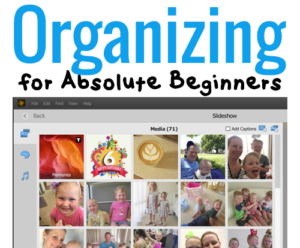 1. Help! My Photos Are Everywhere!
The first thing to do is set up a home base for your existing photos.
This needs to be:
- Easy to access
- Reliable and secure (not an External Hard Drive!)
- Easy to backup
I suggest using your Windows Pictures folder or your Mac Pictures folder. Why? Because it's easy and if you have a tech support person do anything to the computer, the photos will be exactly where they expect them to be are. I've heard too many horror stories of photos squirrelled away in an obscure folder being formatted away by an IT guy.
Action Step: Just drag them all in
That's right. Move them from the desktop, all your SD cards, pull out those old CD's, plug in your phone and just plop them one big messy folder.
Don't overwrite any files, you can de-duplicate them later. If need be, create a folder like 'Desktop photos to sort 2015' and be done with it.
Don't try to set up a fancy system, that will just slow you down. You may not even need to sort them by date if you are using a photo organizer like Picasa or Photoshop Elements Organizer.
Don't try to solve all your tech issues today, just do what you can to get them all in one place.
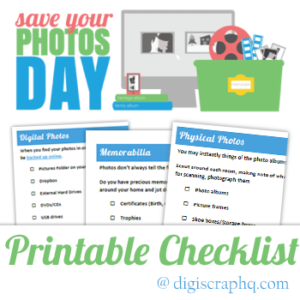 I've prepared this printable checklist to send you on a treasure hunt around your house and your hard drive.
For more information about this process, I go into lots of detail in Organizing for Absolute Beginners class.
2. Backup? What's a backup?
A backup is a second copy of your files.
It does not mean getting all your photos off your computer. Moving the files (or copying first, then deleting them) is not a backup.
A backup means that your files are in two places that you can access. One should be a hard drive connected to your computer, another could be physical storage (DVDs, Time Machine, a spare external drive etc) or cloud storage (a paid service that handles backups).
Do not delete photos from your system once you have a backup. Why? It's not a backup anymore! If you are struggling for space on your hard drive see my section on this below.
I personally use the following system for my photos:
- Photos are automatically downloaded on my computer's internal hard drive.
- Photos are automatically backed up to an online backup service.
- Photos can then be deleted from the Camera Roll or SD card.
 Action Step: Set up an Automatic Backup
For less than $100 a year, you can have a fully automated, highly secure backup that you don't have to think about (Well, ok best to check it's still running every month or two!).
Please, don't wait till it's too late. Just do it!
You can see more details and options for backups here.
3. Sort Your Photos
If you have all your photos in one place and you have a back up in place it's time to think about organizing.
I suggest putting your photos in chronological folders. I have a simple system
Action Step: Sort this year's photos by month
PS. If you use organizing software you can always skip this step! It's mostly useful if you are just using photos in folders on your computer.
Tag Your Photos
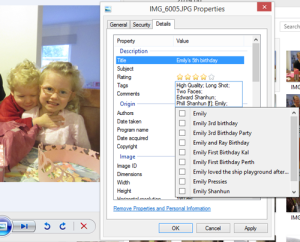 You don't need fancy software to add information to your photos. You can use your file system (on Windows or Mac) to make it easier to find your photos with keyword tags, star ratings and captions. Here's how.
Action Step: Add tags to last month's photos.
Add captions to those photos that will have you asking "what's that?" in a few months time.
Add a five-star rating to your favourite photo of the month.
Add a keyword tag to any photos of people you don't usually photograph. This makes it easy to find a photo of Grandpa or your best friend's daughter.
You can, of course, do lots of fun, and automatic tagging with Photoshop Elements. See how in Or
Help Me!
My photos are stuck on my Phone!
Even if you haven't set up your phone with your computer, you can plug it in with a USB cable.
Open Windows Explorer or Finder and look for it under the list of drives.
Open up the phone and you'll be able to look for a DCIM folder and just copy all the photos over onto your computer without setting up iCloud, OneDrive, Google Drive or DropBox.
If you want to learn more about setting up your phone to download photos automatically, I go into lots of detail in my Organizing for Absolute Beginners class.
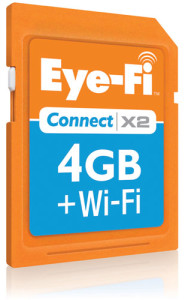 I never remember to empty my Camera SD Card
I recommend buying an Eye-fi card. It can be set up to copy your photos to your computer, then it automatically clears off the card - so you have endless memory! More details here: Get Your Photos onto your Computer (without downloading)
I have no room on my computer!
If you are truly running out of space on your computer, it's time to ask why:
- Have you installed new software? Don't forget to uninstall the old version on Windows or drag it to the Trash on the Mac
- Have you emptied the recycle bin/trash?
- Have you run the disk cleanup tool? Often temporary internet files, temp files and other things will use up a lot of space. Here's how to use the Disk Cleanup tool on Windows or some suggestions for Mac.
- Have you got an overflowing download folder? Clear it out!
If you really have a space crunch it's time to invest in a new internal hard drive or a wifi equipped external drive that you can leave safely plugged into the wall.
Have you got more organizing questions?
Just leave me a comment and I'll do my best to answer them.

I am an Amazon affiliate so may receive a commission if you make a purchase.


Leave a Reply