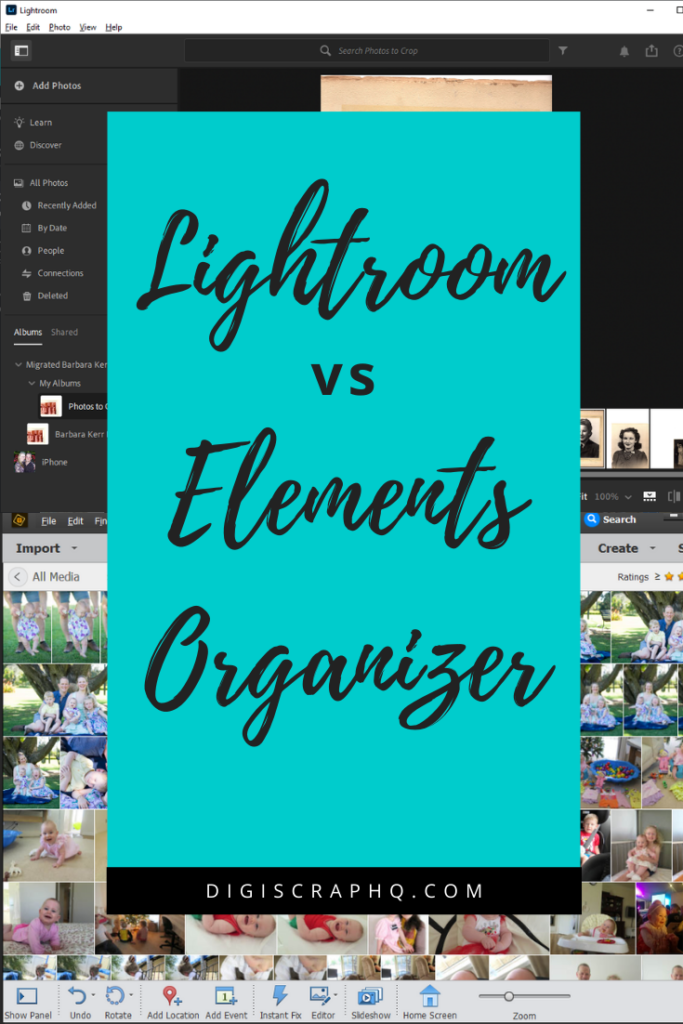
Ever since Lightroom release in 2007, I've been asked why I still recommend Photoshop Elements for photo organizing. So, for those of you who want the answer, I've made a quick reference for you to see the differences between the programs.
Lightroom
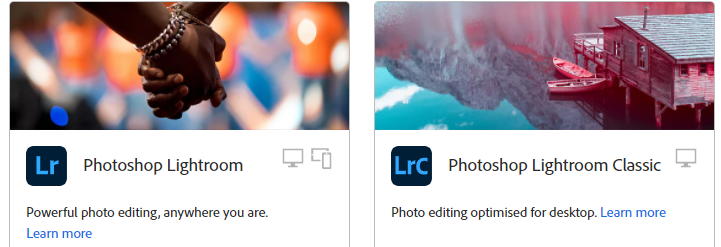
Lightroom comes in a few different flavours! There's Lightroom Classic, which is computer based with option syncing to the Adobe Cloud. Then there is Lightroom works natively with the Cloud and has an accompanying mobile app. There's also Lightoom apps for iOs and Android.
Lightroom of all flavours is now able or organize a variety of formats, not as many as Elements Organizer, but most of the common files you may want to handle.
Photoshop Elements Organizer
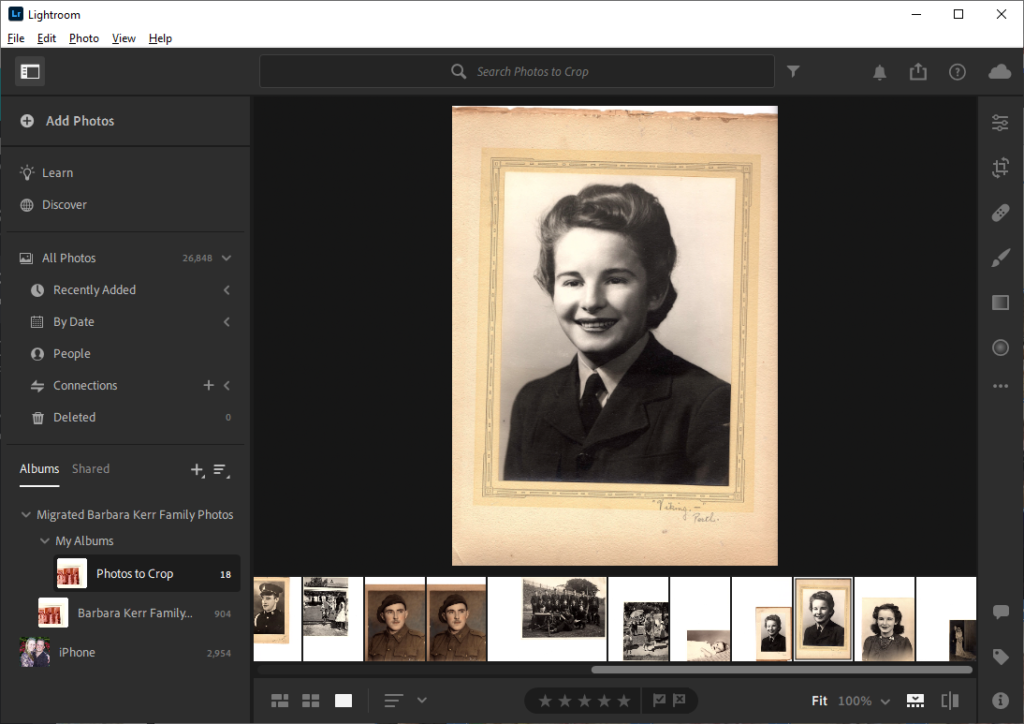
Photoshop Elements and Premiere Element both come with the Elements Organizer, which allows you to use one library for both your photo and video projects. Organizer supports a wide range of file formats.
Imports photos from your hard drive (without moving the files) or from your device (copying the files and deleting if requested).
Organizes photos with the Adobe Sensei engine, GPS data and your input for manual tags. It can also select the best shot of a burst using the Auto-curate feature. It learns the faces of people in your library and automatically tags them. You can view photos by location, people or event. You can also create saved searches and albums which allow you to work on them as a group without making copies of your photos. It also creates video slideshows.
Photoshop Elements (PSE) Organizer handles 100 000+ images with ease. Switches between catalogs if you have multiple catalogs (eg digital supplies and photos or say two family libraries).
Prints photos locally. Exports for printing online (although you can just directly upload the files).
The Differences Between Lightroom and Elements Organizer
There's two different version of Lightroom (Lightroom and Lightroom Classic) and then there's Photoshop Elements Organiser. Here's a summary of the differences I notice when using all three.
Editing
Both Lightroom & Lightroom Classic focuses more on non-destructive editing. This means none of your editing is permanently altering your source images but you need to export your edited files for printing online, you can print locally from within Lightroom. The editing is mostly with sliders or presets, a little less hands on then the Photoshop style of editing with layers. If you just want to fix or edit your photos, Lightroom may suit you.
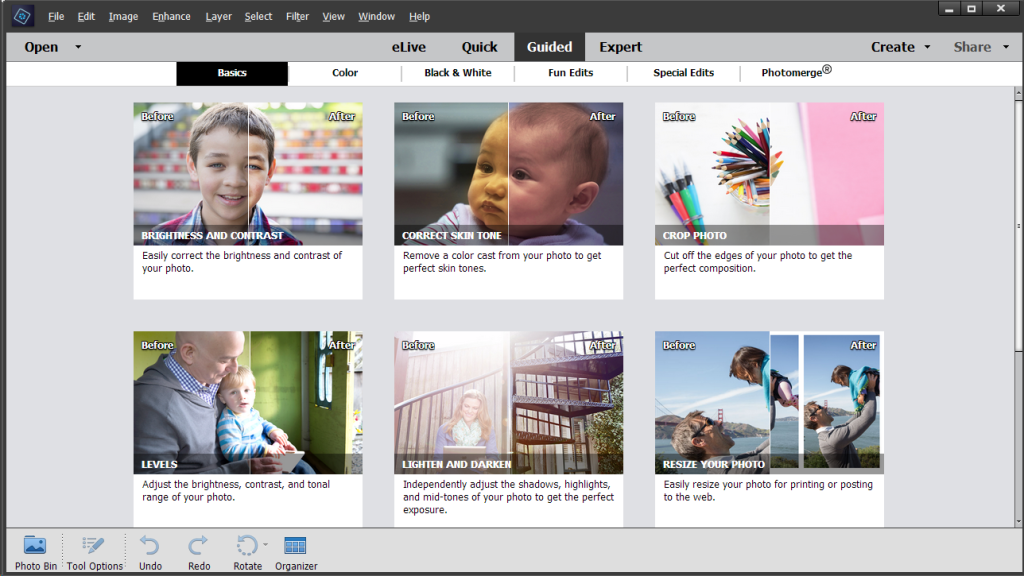
Photoshop Elements Organizer has some editing abilities (crop and lighting adjustments) in the Organizer, but for more detailed edits you would use the PSE Editor. You can use either tutorial style guided edits or Photoshop style edits in the expert mode with layers etc. If you are wanting to create graphics, add text or embellishments PSE is the way to go.
File Storage and Synchronization
Both PSE Organizer and Lightroom Classic store your photos on your local computer hard drive. Both programs generate thumbnails of your images for their databases.
PSE Organizer allows you to control your files and more simply work with an existing folder structure.
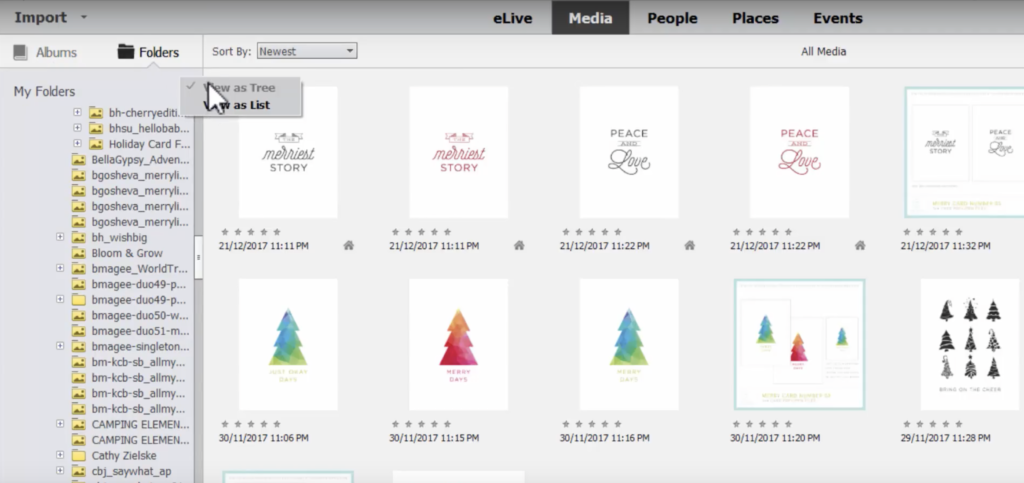
Lightroom Classic, works best if you have empty folders when you add files, rather than moving files around yourself in your file manager.
Lightroom stores your photos in the cloud (and while it uploads it creates a second copy so be sure you have lots of hard drive space or be prepared to add photos bit by bit!)
Neither Lightroom or Lightroom Classic will delete photos from your device. PSE Organizer will if you ask it to, which I consider a feature as it's easy to know which photos you have imported they are no longer on your device.
Lightroom does not easily synchronise its database with your files on your computer. Organizer has a variety of options to watch folders and import files automatically from a variety of cloud services such as OneDrive and Dropbox.
Keyword Tags
Lightroom and PSE Organiser use the Adobe Sensei engine to automatically tag your photos and for intelligent searching.
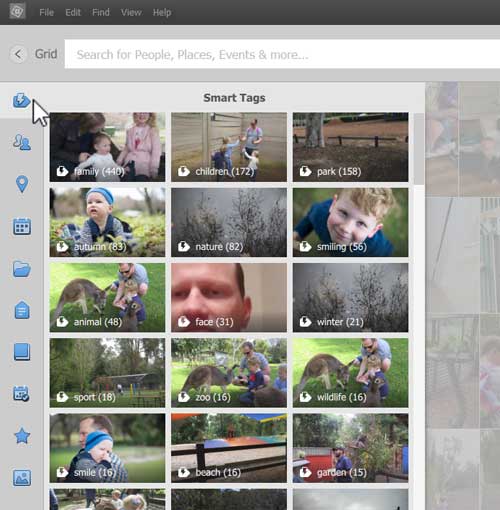
Lightroom Classic relies on manual tagging.
Mobile
PSE Organizer doesn't have a mobile version. Lightroom has a mobile app to access your photos in the cloud.
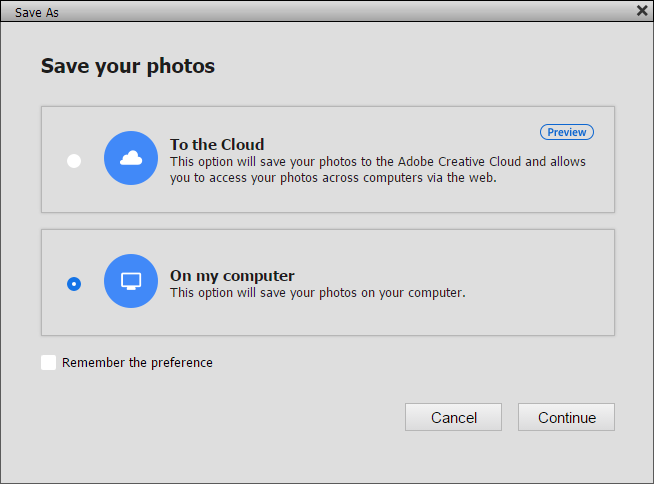
Using Photoshop Elements Editor, you can save files to the Adobe Creative Cloud and access them that way. But that is outside the Organizer catalog, so those files aren't shown in Organizer.
Backup
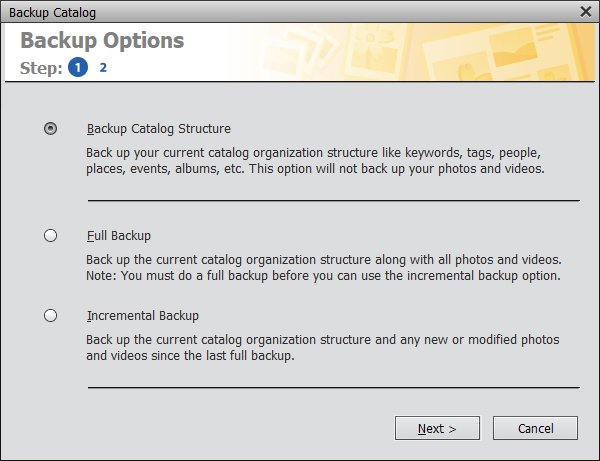
Lightroom Classic and Photoshop Elements Organizer will prompt you to backup. PSE 2021 now has automated backups added. Lightroom is always backed-up in the cloud.
Metadata
You'll need to set up settings in Lightroom Classic for metadata to be written to files.
With PSE Organizer any file you edit will have it's metadata written to the file. Plus you can run the Write Metadata to file command at any time.
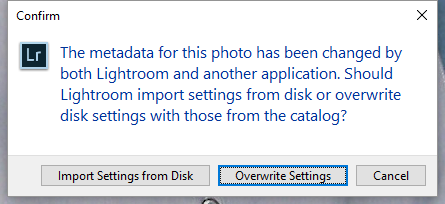
I'm not familiar enough with Lightroom (the cloud version) to know exactly if/when metadata is written to files.
Raw Files
Thanks to ewilts comment, I've now updated this section.
Lightroom natively handles many types of RAW files.
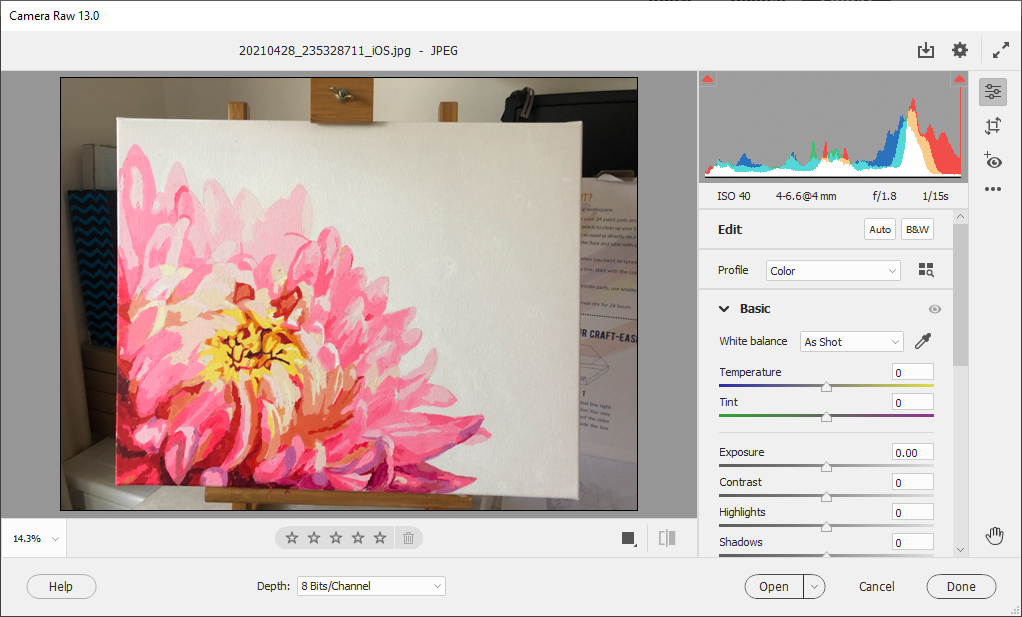
PSE Organizer can import RAW files from supported cameras. You can also open them with the Photoshop Elements Editor (which uses Adobe Camera Raw), and process them as you see fit. Adobe Camera Raw creates a side car file, so your edits are non-desctructive.
Moving Between Programs
PSE Organizer catalogs can be opened in both Lightroom Classic and Lightroom. You'll lose your albums and saved searches.To go back the other way, you'll simply need to write the metadata to the files and import them into Photoshop Elements Organizer. But you will lose any any smart albums. You can recreate them using seed searches.
Price
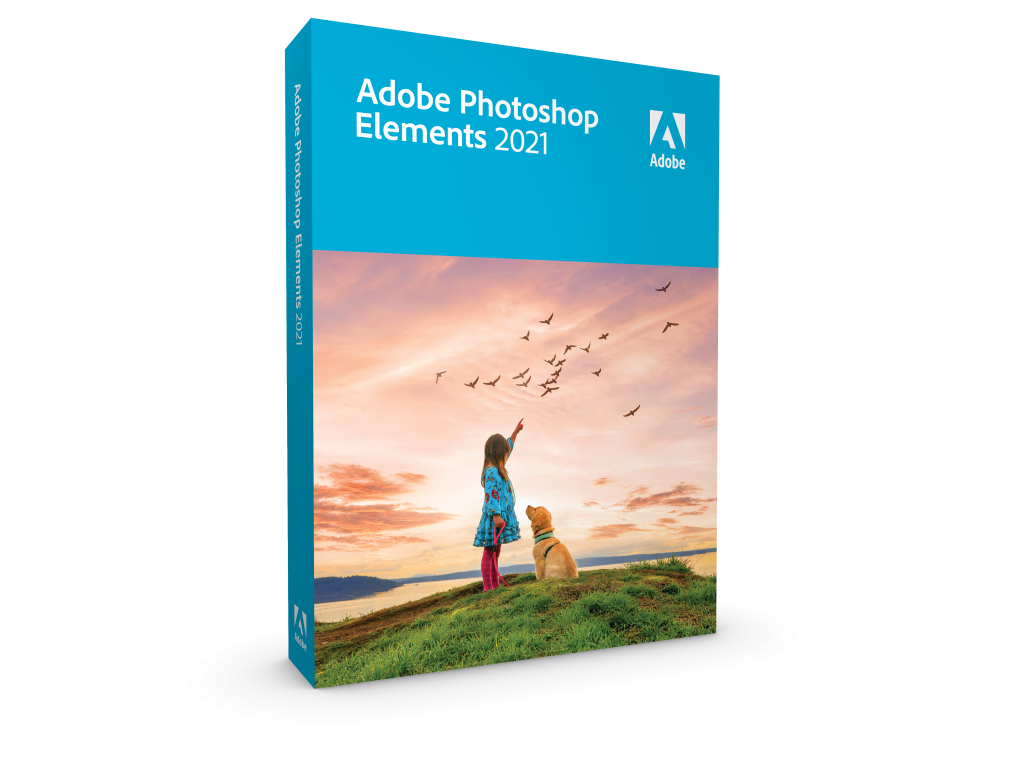
Photoshop Elements is a one off purchase for around $99 US. You can use it for years to come with no additional cost. This includes both the Organizer and the Editor.
Lightroom is available with 1Tb of cloud storage for about $10/m US.
Lightroom Classic is available in the Photography bundle for about $10/m US. That also contains Lightroom and 20Gb cloud storage. These are all ongoing costs, when you stop paying you can still preview your files but can't do any other operations on the files.
I hope this helps, you make your decision, whichever option you choose, I'm here to help you get set up with my personalised Photo Rescue packages.
Happy organizing!

PS Pin this post!
I am an Amazon affiliate so may receive a commission if you make a purchase.
This post contains affiliate links. This means that if you click through that link and purchase an item, I may receive a commission for referring the sale.
I only recommend classes and products that I know and trust. Thank you for using my link if you decide to purchase.
Melissa Shanhun is a participant in the Amazon Services LLC Associates Program, an affiliate advertising program designed to provide a means for me to earn fees by linking to Amazon.com and affiliated sites. As an Amazon Associate I earn from qualifying purchases.


“PSE Organizer can’t import RAW files.”
This is not true – I have many thousands of raw files in my PSE Organizer – that’s how I decide which ones to edit!
Ooh interesting! So are you importing the DNG or RAW files? I must be out of date with my knowledge on this. (This post has been in my drafts for a few years now!)
I’ve updated the post 🙂
My struggle here is in only wanting a good photo organizer via drag and drop thumbnails. I have been using Lightroom 5 for years, but of course it works poorly on my brand new super fast Mac and has not been updated in years.
The key here is that I want complete control of my actual files in my own file structure. For this reason I really dislike the photo handler that comes with Mac. So long way of asking, will I be happy with Photoshop elements organizer as I come from using Lightroom just for the photo organizer? Or is there something better out there that doesn’t involve actual editing?
If you are wanting organizing the actual files, Photoshop Elements is what you are looking for. I can’t think of another Mac compatible program that is not subscription based that does what you want.
Hi! Thanks for telling the differance between Ligthroom and Organizer.
I have used Organizer for many years, and still using version 14 (49 000 photos, 200 videoes). Do you now whether Adobe has improved the Organizer significantly since my version?
I’m not interested in changes in Adobe Elements (the editing part).
Hi Torstein,
Thanks for your comment. Since version 14, the mapping, Autotagging and searching has had a major upgrade. It is also a lot faster at searching, importing etc and more stable. I use it with over 100 000 images and videos.
So I’d say it’s worth the upgrade if you have a computer that fits the system requirements.
Regards
Melissa