Digital Scrapbooking HQ

Learn to Scrapbook Using Your Computer

  • Blog
  • Classes
  • Book Melissa
  • About
  • Contact

Troubleshooting Photoshop Elements Organizer

February 5, 2014 By Melissa Shanhun 4 Comments

troubleshoot-organizerPhotoshop Elements Organizer has been my best friend for digital scrapbooking since 2008 and I enjoy using the program to make finding my photos and supplies quick and easy.

But I know that with any program many people come across bugs, slow performance and crashing. So I've put together my best troubleshooting knowledge to help you keep your organizing frustration free!

Having trouble with PSE Organizer?

Sometimes, with thousands of photos and older computers, you may run into some issues with Photoshop Elements Organizer. Some versions are less stable than others.

I have nearly 200 000 items in my digital scrapbooking supplies catalog and over 50 000 photographs in my photo catalog. I don't usually have issues with my own catalogs, but I've certainly experienced some troubles over the 6 years I've been using PSE Organizer.

Here are my go-to troubleshooting tips.

Be patient with the Thumbnails

If you can see a spinning circle next to the number of items in your catalog, it means Organizer is generating thumbnails of your images. If I import a lot of photos (say over 1000), like to leave my computer be for an hour to give it a changes. PSE can generate about 5,000 to 10,000 thumbnails per hour.

Turn off Auto-Analyze

If you have an older computer, you may want to turn off Auto-analyze as it is constantly working through your photos to analyze them. Trhis can use up RAM and CPU cycles slowing down your computer to a crawl.
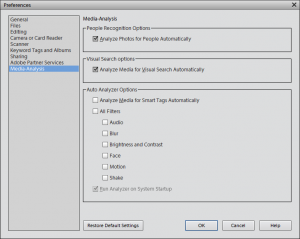
analyse media

The first thing to try when troubleshooting Organizer. Click image to enlarge

To turn off auto-analyze:

  1. Select Edit - Preferences - Media-Analysis (Windows), or Adobe Elements Organizer - Preferences - Media-Analysis (Mac OS).
  2. Deselect Analyze Media For Smart Tags Automatically.
  3. Since my computer is pretty new, I leave Auto-analyze faces on for my photos, but turn everything off for my supplies catalog.

Close down Organizer and reboot your computer

Don't leave your poor computer working day and night. If you find things are running slow or your are getting errors, give your computer a break and turn it off!

Repair and Optimize your Catalog

If you are still having crashes, it's time to repair your Catalog.

Start Photoshop Elements to get to the Welcome screen.

Hold down the shift key and click on Organize. Keep holding down the shift key until you see the Manage Catalog window.
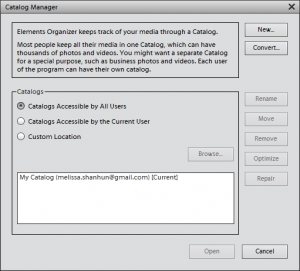
manage catalog

The key to solving your Organizer issues. Click image to enlarge

Select your catalog and click Repair. Select “repair anyway” even if PSE doesn’t find problems.

If you have a lots of files imported to PSE it may take some time - so go and have a cup of tea!

Then you can Optimize your catalog. Optimizing your catalog will allow Organizer to go through and 'tidy up' all the tables in its database. This step may be unnecessary in some cases, but just in case, try it!

Just click the Optimize button.

Make a new catalog

If you still have no luck, you can use the Manage Catalog window to create a new catalog.

You can either create a new catalog to get Organizer up and running, and try switching back to the old one with the File - Manage Catalog command or start afresh

But I'd suggest only starting with a new catalog as a last resort. Try the next two options first!

Get Help from other users

It's pretty likely that if you have had an issue with Organizer, someone else has already come across that problem too.

To get help from other Organizer users you can search the Adobe forums

Leave a comment on today’s post

Of course, I use PSE Organizer daily, so I'd be keen to help answer your organizing questions. Just leave me a comment below.

Melissa1

PS Want to learn more? You can organize your photos or digital scrapbooking supplies in just 5 days! Learn more here: Photos or Supplies

See my favourite things in the Digi Scrap HQ Store at Amazon.

I am an Amazon affiliate so may receive a commission if you make a purchase.

Filed Under: Photoshop Elements Organizer Tagged With: auto-analyze, catalog, catalogs, fix, optimize, repair, troubleshoot

About Melissa Shanhun

Melissa Shanhun is a Aussie mum of four and avid digital scrapbooker. She loves to show others how fun and easy it can be to record your precious memories with tech tools like Photoshop Elements.

Comments

  1. Kimberly DeMucha Kalil says

    February 6, 2014 at 11:44 am

    As always, such useful information! Thanks for sharing.

    Reply
  2. Lois John says

    February 7, 2014 at 12:36 am

    Great information, as usual! TFS.

    Reply
  3. buddesatva says

    January 4, 2018 at 3:27 am

    Good information, well said. Thank you.

    Reply
    • Melissa Shanhun says

      January 4, 2018 at 9:27 am

      I’m happy to help when I can

      Reply

Leave a Reply Cancel reply

Your email address will not be published. Required fields are marked *

G’day! I’m Melissa


G’day, I’m Melissa, Aussie mum and digital scrapbook educator. I'm here to help you pair your photos with memories (and fun supplies!) and create your own photo books.
Click Here to Get Started

Search

Youtube

Join us on Facebook

On the Site

ABCs of PSE Adobe Photoshop Adobe Photoshop Elements affiliate Ali Edwards Becky Higgins Christmas Christmas Album Christmas layout ideas Christmas scrapbook Crafts December Daily December Daily Inspiration December Down Under Digital Scrapbook digital scrapbooking digital scrapbook pages Forever giveaway Holiday Faves interview keyboard shortcuts Lain Ehmann Nettio Designs photobook photobooks photo books photo editing Photoshop Photoshop Elements Photoshop Elements Organizer Podcast project life Project Life app PSE13 PSE2021 Scrapbook Scrapbooking Shutterfly templates tools Tutorial tutorials Week in the Life Workshop

Copyright © 2026 Melissa Shanhun 2011-2023

I wish to acknowledge the traditional custodians of the land I live and work on, the Whadjuk (Perth region) people. I acknowledge and respect the continuing Noongar culture and the contribution they make to the life of this city and this region.

Privacy policy

As an Amazon Associate I may earn from qualifying purchases.

We use cookies on our website to give you the most relevant experience by remembering your preferences and repeat visits. By clicking “Accept”, you consent to the use of ALL the cookies.
Do not sell my personal information.
Cookie SettingsAccept
Manage consent

Privacy Overview

This website uses cookies to improve your experience while you navigate through the website. Out of these, the cookies that are categorized as necessary are stored on your browser as they are essential for the working of basic functionalities of the website. We also use third-party cookies that help us analyze and understand how you use this website. These cookies will be stored in your browser only with your consent. You also have the option to opt-out of these cookies. But opting out of some of these cookies may affect your browsing experience.
Necessary
Always Enabled
Necessary cookies are absolutely essential for the website to function properly. These cookies ensure basic functionalities and security features of the website, anonymously.
CookieDurationDescription
cookielawinfo-checkbox-analytics11 monthsThis cookie is set by GDPR Cookie Consent plugin. The cookie is used to store the user consent for the cookies in the category "Analytics".
cookielawinfo-checkbox-functional11 monthsThe cookie is set by GDPR cookie consent to record the user consent for the cookies in the category "Functional".
cookielawinfo-checkbox-necessary11 monthsThis cookie is set by GDPR Cookie Consent plugin. The cookies is used to store the user consent for the cookies in the category "Necessary".
cookielawinfo-checkbox-others11 monthsThis cookie is set by GDPR Cookie Consent plugin. The cookie is used to store the user consent for the cookies in the category "Other.
cookielawinfo-checkbox-performance11 monthsThis cookie is set by GDPR Cookie Consent plugin. The cookie is used to store the user consent for the cookies in the category "Performance".
viewed_cookie_policy11 monthsThe cookie is set by the GDPR Cookie Consent plugin and is used to store whether or not user has consented to the use of cookies. It does not store any personal data.
Functional
Functional cookies help to perform certain functionalities like sharing the content of the website on social media platforms, collect feedbacks, and other third-party features.
Performance
Performance cookies are used to understand and analyze the key performance indexes of the website which helps in delivering a better user experience for the visitors.
Analytics
Analytical cookies are used to understand how visitors interact with the website. These cookies help provide information on metrics the number of visitors, bounce rate, traffic source, etc.
Advertisement
Advertisement cookies are used to provide visitors with relevant ads and marketing campaigns. These cookies track visitors across websites and collect information to provide customized ads.
Others
Other uncategorized cookies are those that are being analyzed and have not been classified into a category as yet.
SAVE & ACCEPT