Digital Scrapbooking HQ

Learn to Scrapbook Using Your Computer

  • Blog
  • Classes
  • Book Melissa
  • About
  • Contact

How to find a needle in a haystack

November 13, 2012 By Cheryl 4 Comments

Finding Your SuppliesHow can I search for my supplies and what is metadata?

I know it sounds really technical, but don't let the word metadata scare you off. It is what will be making it easy for you to find your supplies at the click of a button!

Photoshop Elements Organizer creates a database of your files, it does not move any files or store them within its database.

Organizer creates a thumbnail of your image and stores it along with metadata (date, keyword and other file information) in the Organizer database buried deep in your hard drive.

The files you import stay where they are on you hard disk.

When you are importing your digital supplies, Organizer is adding information from each file to this metadata. Additionally, when you add a keyword tag to an element, let's say a ribbon, it adds this to the metadata for that file as well. It's the metadata which is stored in that database that allows you to search for specific supplies, such as papers or elements.

Now, after you've imported your supplies, this is how you can search for supplies by using the metadata information. You can tag at the same time.

As an example, we'll search for 12x12 papers by following these steps:

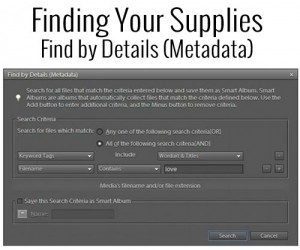
  1. In Organizer, go to Find>By Details (Metadata) - the pop up box is pretty self-explanatory but we'll walk through it.
  2. Check the "All of the following search criteria AND
  3. In the first dropdown box on the left, choose filename
  4. A new dropdown box has appeared in the center with "is" on it. Use the dropdown arrow and choose "ends with"
  5. In the blank box, type jpg and click on the + (plus) sign to the right
  6. In the dropdown box on the left, choose "pixel width"
  7. Leave the middle dropdown box to "is"
  8. In the blank box, type "3600" (most digital papers are 3600 pixels in width)
  9. Click Search
  10. You can now select ALL those papers and tag them as such

What an easy step in your Organizing process!

You can use the same steps to find and tag your other supplies, such as your elements as well, simply by changing your dropdown box choices.

More Photoshop Elements Organizer Tutorials

  • How to tame your digital scrapbooking chaos effortlessly
  • How to Back Up Photoshop Elements Organizer
  • How to Move Your Photoshop Elements Catalog to a New Computer
  • Will You Choose Light or Dark? New Interface in Photoshop Elements 2024
  • Get Organized Supplies with Kim Edsen
  • Upgrade to Windows 11 with Photoshop Elements Organizer
  • Lightroom vs Photoshop Elements Organizer 2021
  • What's New in Photoshop Elements Organizer 2021
  • How to Create Slideshow in Photoshop Elements
  • How to Delete your Screenshots in Photoshop Elements Organizer
See my favourite things in the Digi Scrap HQ Store at Amazon.

I am an Amazon affiliate so may receive a commission if you make a purchase.

Filed Under: Photoshop Elements Organizer, Tutorials Tagged With: Adobe Photoshop Elements, digital scrapbooking, digital scrapbooking class, Digital Scrapbooking supplies, Photoshop, Photoshop Elements, Photoshop Elements Organizer, Tutorial

Comments

  1. Alison says

    November 10, 2013 at 12:25 pm

    How often do we need to “write the metadata to the files”? Does it automatically save it on its own or what is the purpose of this? When I do a back up should I be doing this first?

    Reply
    • Melissa Shanhun says

      November 10, 2013 at 1:39 pm

      Hi Alison

      The purpose is so that all your metadata (captions, tags) is copied out of the catalog and written to your photos. For photos, I suggest you do this regularly, like after each session of organizing or monthly.

      For supplies, this only applies to JPG, TIFF and PSD files, so it’s not as important.

      I would write metadata before I backup, so I’m backing up the up-to-date files. But it’s not a requirement to do so.

      Reply
      • Alison says

        November 12, 2013 at 3:34 am

        Ahhhh I get it! Thanks – I have a flickr account so I’m hoping to back up a little more there too.

        Reply
        • Melissa Shanhun says

          November 12, 2013 at 7:36 am

          🙂 Super!! I love using Flickr!

          Reply

Leave a Reply Cancel reply

Your email address will not be published. Required fields are marked *

G’day! I’m Melissa


G’day, I’m Melissa, Aussie mum and digital scrapbook educator. I'm here to help you pair your photos with memories (and fun supplies!) and create your own photo books.
Click Here to Get Started

Search

Youtube

Join us on Facebook

On the Site

ABCs of PSE Adobe Photoshop Adobe Photoshop Elements affiliate Ali Edwards Becky Higgins Christmas Christmas Album Christmas layout ideas Christmas scrapbook Crafts December Daily December Daily Inspiration December Down Under Digital Scrapbook digital scrapbooking digital scrapbook pages Forever giveaway Holiday Faves interview keyboard shortcuts Lain Ehmann Nettio Designs photobook photobooks photo books photo editing Photoshop Photoshop Elements Photoshop Elements Organizer Podcast project life Project Life app PSE13 PSE2021 Scrapbook Scrapbooking Shutterfly templates tools Tutorial tutorials Week in the Life Workshop

Copyright © 2026 Melissa Shanhun 2011-2023

I wish to acknowledge the traditional custodians of the land I live and work on, the Whadjuk (Perth region) people. I acknowledge and respect the continuing Noongar culture and the contribution they make to the life of this city and this region.

Privacy policy

As an Amazon Associate I may earn from qualifying purchases.

We use cookies on our website to give you the most relevant experience by remembering your preferences and repeat visits. By clicking “Accept”, you consent to the use of ALL the cookies.
Do not sell my personal information.
Cookie SettingsAccept
Manage consent

Privacy Overview

This website uses cookies to improve your experience while you navigate through the website. Out of these, the cookies that are categorized as necessary are stored on your browser as they are essential for the working of basic functionalities of the website. We also use third-party cookies that help us analyze and understand how you use this website. These cookies will be stored in your browser only with your consent. You also have the option to opt-out of these cookies. But opting out of some of these cookies may affect your browsing experience.
Necessary
Always Enabled
Necessary cookies are absolutely essential for the website to function properly. These cookies ensure basic functionalities and security features of the website, anonymously.
CookieDurationDescription
cookielawinfo-checkbox-analytics11 monthsThis cookie is set by GDPR Cookie Consent plugin. The cookie is used to store the user consent for the cookies in the category "Analytics".
cookielawinfo-checkbox-functional11 monthsThe cookie is set by GDPR cookie consent to record the user consent for the cookies in the category "Functional".
cookielawinfo-checkbox-necessary11 monthsThis cookie is set by GDPR Cookie Consent plugin. The cookies is used to store the user consent for the cookies in the category "Necessary".
cookielawinfo-checkbox-others11 monthsThis cookie is set by GDPR Cookie Consent plugin. The cookie is used to store the user consent for the cookies in the category "Other.
cookielawinfo-checkbox-performance11 monthsThis cookie is set by GDPR Cookie Consent plugin. The cookie is used to store the user consent for the cookies in the category "Performance".
viewed_cookie_policy11 monthsThe cookie is set by the GDPR Cookie Consent plugin and is used to store whether or not user has consented to the use of cookies. It does not store any personal data.
Functional
Functional cookies help to perform certain functionalities like sharing the content of the website on social media platforms, collect feedbacks, and other third-party features.
Performance
Performance cookies are used to understand and analyze the key performance indexes of the website which helps in delivering a better user experience for the visitors.
Analytics
Analytical cookies are used to understand how visitors interact with the website. These cookies help provide information on metrics the number of visitors, bounce rate, traffic source, etc.
Advertisement
Advertisement cookies are used to provide visitors with relevant ads and marketing campaigns. These cookies track visitors across websites and collect information to provide customized ads.
Others
Other uncategorized cookies are those that are being analyzed and have not been classified into a category as yet.
SAVE & ACCEPT