Digital Scrapbooking HQ

Learn to Scrapbook Using Your Computer

  • Blog
  • Classes
  • Book Melissa
  • About
  • Contact

Don’t Retag: How to Convert Your Old Photoshop Elements Catalog

March 19, 2014 By Melissa Shanhun 11 Comments

convert-photoshop-elements-catalogI took your class on organizing supplies. I learned a few things from the class... but I am sure I missed something. I appreciate the help as I am retagging 13 years of photos and 30,000 plus items because I moved PSE 11 and it WILL not recognize my catalogs from PSE 10. UGH!

Thank you,

Deborah

Oh no! Just wait a second! You should not need to retag...

Photoshop Elements Organizer, should look for old catalogs when you first install it and prompt you about converting them. But if you accidentally cancel out of that process, it's not super obvious how to convert an old catalog.

How to Upgrade/Convert your Catalog to a new Version of Photoshop Elements

  1. If you still have your older version of Photoshop Elements  installed, open it up and follow the directions here This will backup your metadata for you! May take an hour or more. If you uninstalled your old version PSE, just skip this step.
  2. Then, open up your new version of Photoshop Elements Organizer and select File - Manage Catalogs...
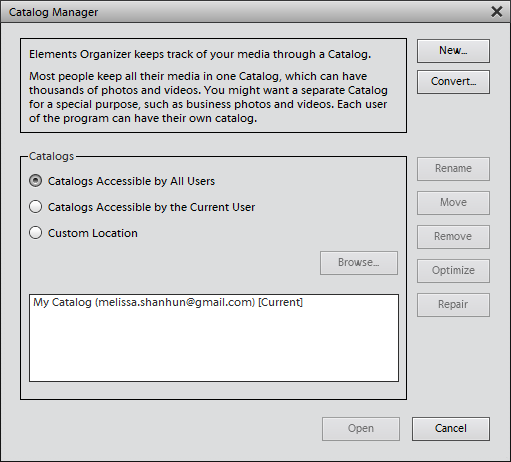
    Manage catalog in Photoshop Elements
  3. Click Convert
  4. It will say loading for a while, then it will list all your older catalogs
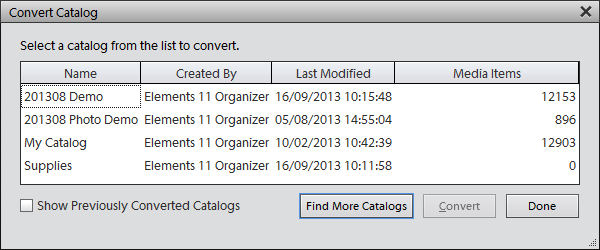
    convert old photoshop elements catalog
  5. Click on the one that says it was created by your old version of PSE. If it doesn't show, check the box for Show Previously converted Catalogs.
  6. Click Convert.
  7. Then Photoshop Elements will do its thing, and will tell you the name for the catalog it just converted
  8. When you get back to the Catalog manager choose the newly converted catalog, click open and voilà, NO RETAGGING! 🙂

If for some reason you run into trouble converting the catalog, jump back to the old version of PSE and follow the troubleshooting steps here.

If you are moving from a PC to a Mac, the instructions are here.

Are you having issues moving to a new version of Photoshop Elements? Ask me your questions below!

Melissa1

See my favourite things in the Digi Scrap HQ Store at Amazon.

I am an Amazon affiliate so may receive a commission if you make a purchase.

Filed Under: Photoshop Elements Organizer, Tutorials Tagged With: catalog, catalogue, convert, organising, Organizing, troubleshoot

About Melissa Shanhun

Melissa Shanhun is a Aussie mum of four and avid digital scrapbooker. She loves to show others how fun and easy it can be to record your precious memories with tech tools like Photoshop Elements.

Comments

  1. Heather Dubarry says

    March 20, 2014 at 8:24 pm

    I wish I’d had this when I moved from PSE3 to 9. Ahh… ancient times. Now I’m trying to figure out (on a Mac) whether or not I should add Lightroom to my organizational capabilities. Using the standard settings for iPhoto is getting a bit unwieldy with my giant pile of almost 30K digi pics.

    Reply
    • Melissa Shanhun says

      March 25, 2014 at 4:49 pm

      Heather, if you are already using iPhoto, Aperture is like the big brother program 🙂 so it will move over perfectly.

      Do you mostly organize or are you wanting the editing capabilities of Lightroom?

      Reply
      • Heather Dubarry says

        March 25, 2014 at 8:14 pm

        I mostly want it for organization purposes, and since I’m paying for Adobe cloud, it makes since not to pay more for Aperture.
        I really don’t like how iphoto imports pics. But I should have set that up when I first switched to mac three years ago.

        Reply
        • Melissa Shanhun says

          March 27, 2014 at 3:01 pm

          Fair enough! Just be aware LR doesn’t delete them off your camera (mind you neither does iPhoto by default). Don’t ask how I know this…. lets just say that my parents in law had a very full camera ;P

          Reply
    • Melissa Shanhun says

      March 25, 2014 at 4:49 pm

      Also 30K pics isn’t that many LOL! ;P

      Reply
  2. Jill Briscoe says

    August 1, 2016 at 10:25 am

    I have just bought a new computer with windows 10, and downloaded the PSE 7 that I bought in 2009. On trying to activate it I find that Adobe no longer supports this product as it’s so old.
    I have spent ages in their forums and on chatline with them but all they can do is suggest that I upload CS2. Is this a good idea? Will I have to learn everything again?
    And most importantly, if I buy a new version of PSE, is there any way that I can import all my keyword tags etc. I am really daunted at the prospect of going through 7 years of photos and scrapbooking to re-categorise everything!
    I do hope that you can help, or point me in the right direction

    Reply
    • Melissa Shanhun says

      August 2, 2016 at 12:32 pm

      Adobe’s schedule usually see a new release coming in September each year, so I would recommend waiting for that.

      If you have CS2 already, sure install that and give it a go. But there’s no organizer.

      If you have your PSE7 catalog you’ll be able to convert it automatically when you install PSE.

      In the mean time, you can always do the 30 day trial option , and use PSE7 as usual for 30 days.

      Then you can be sure all your metadata is written to file, export your keyword tree etc.

      I hope this helps!

      Reply
  3. coh2000 says

    April 11, 2022 at 12:31 am

    I’m getting a new desktop PC (windows 11) and I’ll purchase PSE22 for that PC.

    I need to get my PSE8 objects ( Vista 32 bit desktop) system onto the new PC & PSE22.

    I don’t know if that is even possible especially the PSE8 ‘slide show projects’ on the old PC/PSE8. Any advice for me?

    Reply
    • Melissa Shanhun says

      April 17, 2022 at 10:58 pm

      Hi – what you’ll need to do is create a backup in PSE8 (here’s how https://digitalscrapbookinghq.com/back-catalog-photoshop-elements-organizer/)

      I would then install PSE8 on Windows 11 (hopefully that will still work!) and then you can install PSE22 and upgrade the catalog.

      Your Slide show projects should still come across. However to be extra cautious you can export them as videos on your old PC first. Feel free to email help@ digiscraphq.com for more help.

      Reply
  4. Kelly says

    September 26, 2023 at 1:02 pm

    Hi, Qs please . . . I have a new laptop 16GB and currently use PSE 2013 – old laptop died so Working from a backup and hoping to load photos and backup tags to a new PSE on new laptop. Was going to upgrade to PSE 2023 to start this process on new computer. What is best way to approach this….upgrade to PSE 2023 then load the program onto new laptop then try import from a backup? Ive done none of these steps yet.

    Reply
    • Melissa Shanhun says

      September 28, 2023 at 10:47 am

      Hi Kelly

      You can absolutely install PSE2023 on the new computer and open the PSE13 backup and tags in PSE2023.

      If you need more help you can email help at digiscraphq.com

      Hope this helps!

      🙂 Melissa

      Reply

Leave a Reply Cancel reply

Your email address will not be published. Required fields are marked *

G’day! I’m Melissa


G’day, I’m Melissa, Aussie mum and digital scrapbook educator. I'm here to help you pair your photos with memories (and fun supplies!) and create your own photo books.
Click Here to Get Started

Search

Youtube

Join us on Facebook

On the Site

ABCs of PSE Adobe Photoshop Adobe Photoshop Elements affiliate Ali Edwards Becky Higgins Christmas Christmas Album Christmas layout ideas Christmas scrapbook Crafts December Daily December Daily Inspiration December Down Under Digital Scrapbook digital scrapbooking digital scrapbook pages Forever giveaway Holiday Faves interview keyboard shortcuts Lain Ehmann Nettio Designs photobook photobooks photo books photo editing Photoshop Photoshop Elements Photoshop Elements Organizer Podcast project life Project Life app PSE13 PSE2021 Scrapbook Scrapbooking Shutterfly templates tools Tutorial tutorials Week in the Life Workshop

Copyright © 2026 Melissa Shanhun 2011-2023

I wish to acknowledge the traditional custodians of the land I live and work on, the Whadjuk (Perth region) people. I acknowledge and respect the continuing Noongar culture and the contribution they make to the life of this city and this region.

Privacy policy

As an Amazon Associate I may earn from qualifying purchases.

We use cookies on our website to give you the most relevant experience by remembering your preferences and repeat visits. By clicking “Accept”, you consent to the use of ALL the cookies.
Do not sell my personal information.
Cookie SettingsAccept
Manage consent

Privacy Overview

This website uses cookies to improve your experience while you navigate through the website. Out of these, the cookies that are categorized as necessary are stored on your browser as they are essential for the working of basic functionalities of the website. We also use third-party cookies that help us analyze and understand how you use this website. These cookies will be stored in your browser only with your consent. You also have the option to opt-out of these cookies. But opting out of some of these cookies may affect your browsing experience.
Necessary
Always Enabled
Necessary cookies are absolutely essential for the website to function properly. These cookies ensure basic functionalities and security features of the website, anonymously.
CookieDurationDescription
cookielawinfo-checkbox-analytics11 monthsThis cookie is set by GDPR Cookie Consent plugin. The cookie is used to store the user consent for the cookies in the category "Analytics".
cookielawinfo-checkbox-functional11 monthsThe cookie is set by GDPR cookie consent to record the user consent for the cookies in the category "Functional".
cookielawinfo-checkbox-necessary11 monthsThis cookie is set by GDPR Cookie Consent plugin. The cookies is used to store the user consent for the cookies in the category "Necessary".
cookielawinfo-checkbox-others11 monthsThis cookie is set by GDPR Cookie Consent plugin. The cookie is used to store the user consent for the cookies in the category "Other.
cookielawinfo-checkbox-performance11 monthsThis cookie is set by GDPR Cookie Consent plugin. The cookie is used to store the user consent for the cookies in the category "Performance".
viewed_cookie_policy11 monthsThe cookie is set by the GDPR Cookie Consent plugin and is used to store whether or not user has consented to the use of cookies. It does not store any personal data.
Functional
Functional cookies help to perform certain functionalities like sharing the content of the website on social media platforms, collect feedbacks, and other third-party features.
Performance
Performance cookies are used to understand and analyze the key performance indexes of the website which helps in delivering a better user experience for the visitors.
Analytics
Analytical cookies are used to understand how visitors interact with the website. These cookies help provide information on metrics the number of visitors, bounce rate, traffic source, etc.
Advertisement
Advertisement cookies are used to provide visitors with relevant ads and marketing campaigns. These cookies track visitors across websites and collect information to provide customized ads.
Others
Other uncategorized cookies are those that are being analyzed and have not been classified into a category as yet.
SAVE & ACCEPT