Did you know you can create multiple Catalogs in Photoshop Elements?
If you have several collections of photos you may want to keep them seperate. Here's a question from a reader about this situation.
Help... I have Elements Organizer in 2020. I have all my personal photos on [my internal drive] I have all my Special Olympics on my [external] drive Special Olympics is 51,307 Files, 653 Folders for over 200 athletes and 60 (plus or minus) coaches. I have a new high-end gaming PC. I've had trouble keeping the Personal and the Special Olympics separate. I want to name all the coaches and Athletes in Special Olympics. But I keep seeing other photos popping in... Suggestions on how to keep a separate Organizer group / Catalogue for just Special Olympics.
Gene
How to Keep things Separate
You can absolutely separate the images with two catalogs.
I'd create two catalogs and have Personal Catalog watch the main internal hard drive, and Olympics Catalogue to watch the photos on the external drive. In my own set up I have two catalogues with over 100 000 images in each working well on my computer.
How to Create a New Catalog in Photoshop Elements Organizer
To create a new Catalog in Organizer, you'll need to head to the File > Manage Catalogs.
Then click on the New... button

Then enter a name for the new catalog.
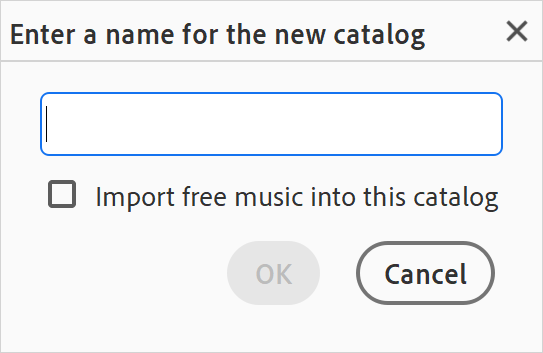
You can then import your photos that are relevant to your new catalog.
How to Avoid Catalog Mix Ups
The next issue is how to avoid having the wrong photos imported into the catalog. Here's how to manage the common reasons this could occur.
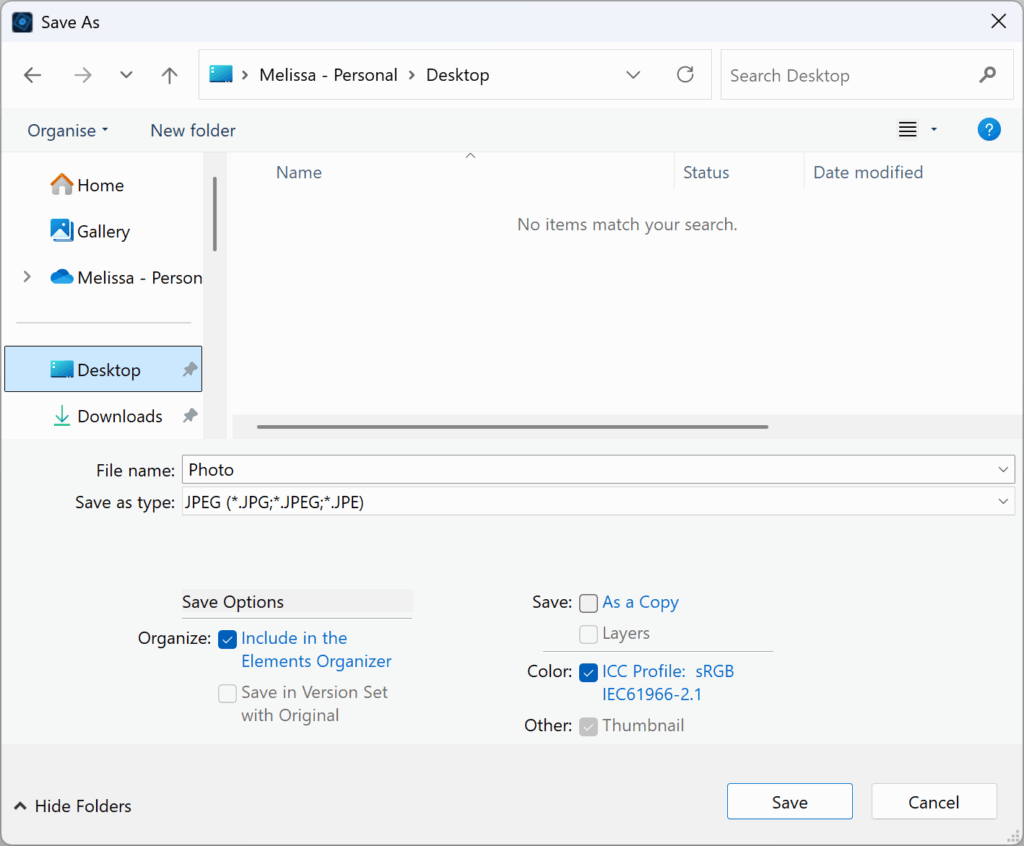
By default, the Photoshop Elements will add files to the catalog whenever you save a file. The option to 'Save image in Organizer' is turned on in the File - Save dialog box, so the photos will be saved in the currently open catalog.
To avoid photos being saved in the wrong catalog:
- Make sure you have the correct catalog open when you are working on the file
- Or, turn off Include in the Elements Organizer in the Save as... Dialog.
- You can have the photos import automatically using the Watch Folders feature.
How to Watch Folders
You are now ready to set up your Watch Folder, and here's how to do that:
- In Organizer, go to File > Watch Folders
- Click on the "Add" button and browse to your main folder where you store your supplies.
- Check to box to Watch Folders and their Sub-Folders
- Select to Automatically Add Files to Elements Organizer
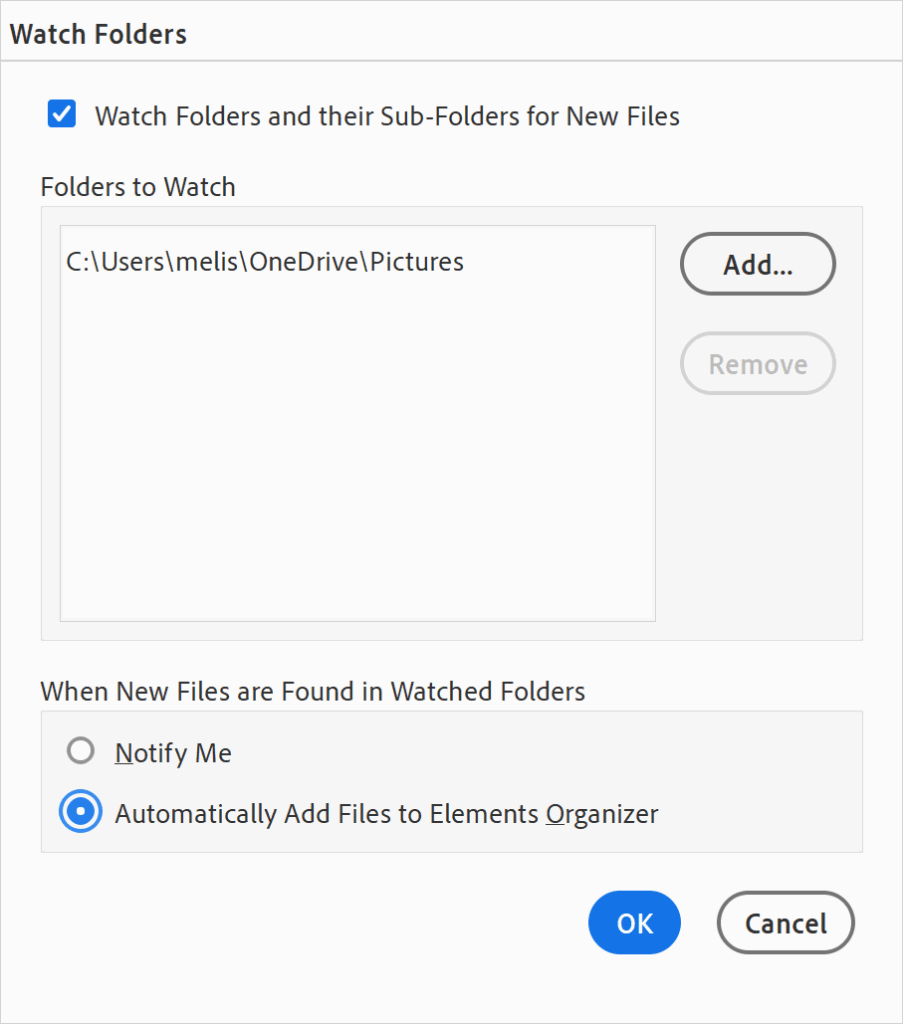
Now each time you open Organizer, it will automatically import only the photos in those specifc folders (or drive).
You'll never have mixed up photos again!
Have you used multiple catalogs? I have separate catalogs for different purposes, such as my photos and my digital scrapbooking supplies.
Happy organizing!

I am an Amazon affiliate so may receive a commission if you make a purchase.


Leave a Reply