Now is the moment of truth.
Today we are opening up Photoshop Elements Organizer to put it all in!
Step 1: Read
Step 2: Watch
Click on the far right button to watch the video in full screen mode
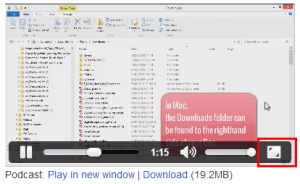
Podcast: Play in new window | Download (8.8MB)
Subscribe: RSS
15-Minute Challenge: Import and automate
Organizer will not move the files. It just links over to the file already located on your computer. See this article in for more details.
Please follow the directions for Mac or Windows below.
Extra Credit: THINK
How do you scrap?
- Mix and match?
- Use coordinating kits?
- Post to galleries?
- Submit for publication?
Take a look at the Article about Organizing Styles at the Daily Digi and think about how you’d like to organize your supplies.
We’ll be tackling more of this in Day 5, but it doesn’t hurt to get the wheels turning.
Leave a comment below to let me know you're done - or click like to for a quick check-in.
Happy organizing!

I am an Amazon affiliate so may receive a commission if you make a purchase.

I didn’t get all the imports set at once. I just set my third and last one tonight and I’m off to bed while it works away! I’m ready for the next step!
Go you! 🙂
I have managed to import the files from my EHD but only a few show up with previews, the rest all have question marks and when I click on them it tries to find the file but can’t. Help what have I done wrong!
A couple of questions.
What sort of computer are you using?
What version of PSE are you running?
Is the EHD still plugged in?
Did the previews show up at any point?
Take a look at this http://www.digitalscrapbookinghq.com/how-to-ensure-all-your-files-are-in-photoshop-elements-organizer/
to see how to reconnect the files.
Let me know more details and I’ll try to help 🙂
Hi, thanks for getting back so promptly. I am using a PC, with PSE 9. yes the EHD is still plugged in. I will try to reconnect files
Now this is where I also have a problem Melissa. I have selected my folder on the drive where I store my scrapbooking files. I added it to my Watch folders list, clicked on OK, and then….nothing–no previews–no images–nothing. Am I missing something?
🙂 Glad you worked it out. The watched folder will now watch for NEW supplies. I will amend the handout to make that a little clearer.
what video???? I am having same problem! thanks!
Hi Sharon
Here’s the link to the video http://www.youtube.com/watch?v=Zkehsp6b6pQ
When I set the automatic Watch feature it doesn’t automatically import those files I downloaded months ago. I have to first have to import files into PSE. I hope that now that I have done that it will do it automatically from now on. It always used to, not sure what it going on. Memory too full? PSE version too old, I have PSE6 and am very happy with it. so far I have been able to do everything you taught, also when it comes to making layouts.
Hi Sonja! I totally missed a step in the handout. I’ll fix that one now.
1. Head to your digi supplies home base, drag the folder over to Organizer, and go have a cup of tea while Organizer goes to work!
2. Set up watched folders 🙂
BTW, when PSE did import all my digi supplies it made suggestions for tags, how to respond? I just accepted but now worry I will get a looooong list of tags.
I usually just accept the tags, you can delete them later.
This video may help 🙂
http://www.youtube.com/watch?v=Zkehsp6b6pQ
Do you have a suggestion for linking the pictures (not supplies) I have saved to my External Hard Drive with my PSE library. I keep anything older than a year on the EHD because I take so many pictures and it just fills up and slows things down. But then I keep getting those ‘?’ marks in my PSE library and so far I have only been able to link them manually which is very time consuming. I am now thinking to just do the import thing again and see what happens.
If you link up one image, it should find all the others in the same folder as you scroll past.
Otherwise, maybe try 1) deleting the thumbnails 2) reimporting the missing ones.
Thanks for the fast replies Melissa, I am doing some long overdue tidying of PSE!
A question on this, I don’t keep my pictures in my digi folder. Should I move them over to digi folder prior to do this step?
No leave your pictures where they are. We will handle them in Days 6-10 🙂
Help Melissa! I am about ready to uninstall PSE11 and start over. I can not get rid of all of the things that came in when I pulled in just one folder. I have stray photos, music, .page files, etc. and of course PSE11 doesn’t read most of that, plus I don’t want the photos on there. I can not delete folders, the organize crashes, and I have to restart with the same results. At times I can’t even get it to show me the sub-folders without it crashing. Any ideas?
Try repairing the catalog
http://help.adobe.com/en_US/elementsorganizer/using/WS3d021fd412237a2f14afb0171392eec10c6-7ffb.html#WS88C91CD5-DCAC-4028-ABCE-E80DBD57CBBE_WIN
If you truly want to start over…
1) Try creating a new catalog (see http://digitalscrapbookinghq.com/go7 handout to see how)
2) re import ONLY what you want
If you can’t even create a new catalog…
1) Close PSE
2) Reboot
3) Open it up and hold down shift when you choose Organizer
4) Create a new catalog from there
I hope this helps!
oh my! I can just drag multiple folders onto organiser. No more bringing them in individually! You’re a gem!
Yay! I’m so glad! It would be a pain to do them individually!
I already have a system in place for when I download and unzip digi supplies, but I’ve never put them in the Organizer. The reason is this: Many of my supplies come in kits and have several folders. I have to transfer each folder individually and it takes forever.
When I tried the “watch folder” method, nothing happens and I still have to do each folder (within the kit) separately. It makes uploading and tagging a long drawn out process.
Any ideas on how to get this to be a quicker process?
Hi
Watch folder only imports *new* folders after the date it was set up.
You can just click Import – From files and folders – and then select your home base folder (just click once on it) and click Get Media
It will then import every kit within that home base folder – does that help at all?
Next time you unzip and open Organizer, watch folders with run and import the new supplies.
Let me know if you have more questions 🙂
HI Melissa, For some reason, I was unable to have both the Organizer and my Digi File windows open at the same time; therefore, I could not simply drag my digi file into the Organizer. I finally figured out add my files by using the Organizer’s Import drop down menu. A tad on the frustrating part. Perhaps in future versions of this class (which I’m loving BTW!), you could add a link to a tutorial on using Organizer’s Import option should anyone else have trouble ‘dragging & dropping’.
Hi Ane
Thanks! I’ll be sure to include that next time!
Thank you all my kits are in photoshop. I must say I am so frighten of exploring photo shop in case I muck anything up. How will I ever learn to scrap book beats me lol. It all seems so complicated.
Hi Melissa! Today I imported everything into the organiser; I knew it would be slow because of my RAM issues, but only a few hours so that wasn’t too bad. I skipped ahead a little (just wanted to play, LOL!) and when I went to search by colour, I was prompted to index all the files to make analysing faster. This took quite a few hours, but seemed to do the trick! I am absolutely loving seeing all my stash and can’t wait to delve further!
Sue
PS: I am not able to automate since I am using a mac, but having seen all my lovely supplies, I think its time I used them and not bought any more for the time being:) I don’t mind adding them manually, although I can see that this would be a lovely feature!
Sue
🙂 We’ll keep asking them!!
Melissa,
I have all of my Digital kits on one EHD under separate files according to what they are, how do I grab those files and take them to the organizer area of my PSE10?
Hi Sandy
Just open the Finder/Windows explorer and browse to the folder you want to add.
Then drag that folder over the main window of PSE10. It should start importing it all for you.
Let me know how you go!
🙂 Melissa
OK, I took the “Babies and Children” folder over from my digital SB EHD like you said and it did import all of them, but it then states to tag all as cardstock. There are elements, alphas, misc, and cardstock….not sure what to do about tagging items…is that the next lesson? I have thousands and thousands of items to import!
If it’s prompting you for tags, it’s perhaps that some of the cardstock is tagged.
You can see the explanation here http://www.digitalscrapbookinghq.com/import-keyword-tags-from-photo-metadata/
Just continue importing all your supplies, leave it right now and we tackle tagging in the next challenge!
Link to the first article is coming up with page not found
Hi Hannah – sorry about that! I’ve now fixed the link.
There were 314 files that didn’t import, but over 10,000 that did! Some of the files went in under psd files, and not in the original folder. Are we going to find out how to move things around?
Hi Karen
The 314 files likely included some duplicate previews and text files. PSE Organizer tries not to import exact duplicates.
The folders on the left hand side will list all the folders (including subfolders) PSE doesn’t create any folders in this process, so the PSD file folders are likely from some templates you’ve imported?
To see the file structure (so you can check) just click on the icon to the right of the folder list. (The tool tip says show folder hierarchy)
Using the system I show in this course you shouldn’t need to move things around, we use tags and searching so we don’t need to move them.
However, if you need to move a folder, just go to tree view (as descibed above) and click and drag the folder to where you would like it to be. This will not disconnect any files 🙂
I hope I understood your question and that this helps!
🙂 Melissa