 So if you know about digital scrapbooking stores or freebies, you've likely got a growing collection of digital scrapbooking supplies on your computer.
The question is: WHAT TO DO WITH ALL THE STUFF?
How do you find what you want the mess of folders?
What should you do with the zip files?
You don't need to shell out another hundred dollars for Lightroom, ACDSee or battle with a folder structure that never quite does what you want.
Photoshop Elements has the Answer
The Photoshop Elements Organizer comes with all recent versions of Photoshop Elements for Windows and version 9 onwards for the Mac.
You can use Photoshop Elements Organizer to organise your photos (indeed this is what it was designed for!) but today I'm going to demonstrate how I use it to keep all my digital scrapbooking supplies under control.
Watch today's video for a quick start guide to getting your supplies organised.
You can watch the video in full-screen mode: Click to start playing the video - then you can click on the far right button (4 arrows outwards). See them in all their glory and actually be able to read the text and see what I am doing!
What happens to your files?
Photoshop Elements Organizer creates a database of your files, it does not move any files or store them within its database (it's different from iPhoto!).
Organizer creates a thumbnail of your image and stores it along with metadata (date, keyword and other file information) in the Organizer database buried deep in your hard drive.
The files you import stay where they are on your hard disk.
Set up Organizer
If you keep all of your digital scrapbooking supplies in one folder on your computer, you can set up the Organizer to search this folder for new items every time it is opened.
I find this is the quickest was to keep my Organizer up to date with my purchases.
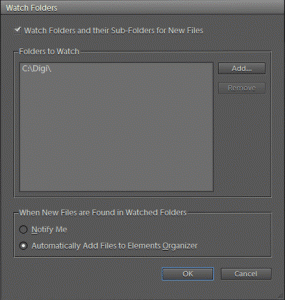
Import your Files
I suggest importing just a couple of folders at a time if you have an overwhelming amount to organise.
- Go to File - Get Photos and Videos (Ctrl+G) and browse to the folder you want to import
- Then click Get Media.
- If there are any errors, these are likely just duplicates or files Organizer can't handle, so just click OK
Navigate in the Organizer
- Double click to open one image in a larger image size
- Use the arrow keys to navigate through your images
- Click on the keyword tag to restrict your view to the items in just one category.
- Click show all to Show all of your images
How to Tag Quickly
Start simple!
Tag simply to start with, you can always add more tags, but if you start trying to tag with too many details you'll find yourself wading through an endless list of keywords with only a few items under each one.
Tag by how you look for supplies
If you mainly scrap with kits, just tag the kit previews with how you look for the kits (colour or theme)
Are you always looking for one designer's kits? Create a smart album for that designer, by searching for filenames that contain their designer id (eg Tangie or Flergs)
Do you like to search by colour? Tag items by colour.
Real life example: I tag only my papers by colour, I will look for a paper, find one I like then click on Show in Windows Explorer to see the rest of the kit. Then I usually just scrap with that kit.
Use search by Details (Metadata)
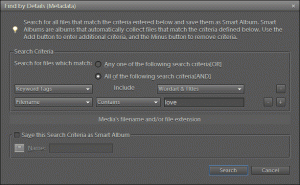
Most designers use their own naming convention, so I use the advanced search functions to take advantage of that. Here are a few tips on searching to find items in your collection to tag as a group.
Previews?
Pixel width <600
Filenames end with jpg
Tag by theme or colour scheme
Looking for Papers?
Pixel width 3600
Filename ends with jpg
Tag by colour or pattern
Ctrl+Click (Cmd+Click on the Mac) to select multiple papers at once
Embellishments?
Filename contains flower (or button or ribbon etc)
Filename ends with png
Tag by colour or type
Alphabets?
Filename ends with png
Filename includes alpha, lower or upper
Tag then stack your alphas to have less clutter! Go to Edit - Stack - Stack Selected Photos
Templates?
I've created a video tutorial showing you how I tag all my templates:
Find Templates by searching for:
Filename ends with tiff
Filename ends with psd
Tag by number of photo spots or style (graphics or clustered)
How to find things fast
- Use filenames and keywords together using the Find - By Details (Metadata) option on the Find menu.
- Add captions for items you think you may want later, eg types of patterns or word art. Then you can search by Find - by Caption or Note
- Click on the Keyword Tags to create an OR search. For eg, if I click on flower and leaf, any of the items that are tagged with flower or leaf appear.
- You can also build advanced searched in the By Details (Metadata) search box
- You can also select one paper in say red and then search by Visual Searches - Visually Similar Photos or Videos - all your red papers and embellishments will appear and you can tag them in one fell swoop! AWESOME!
Keyword Lists
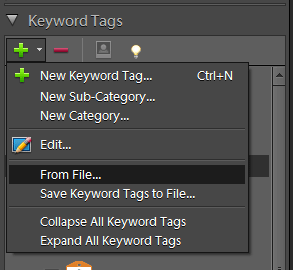 You can import these keyword lists by clicking on the green + button in the Keywords Panel and then From File
Download Starter Keyword Tags
This download includes:
- Basic Paper Colours
- A basic list of embellishments
- Seasons and Themes: Seasons Keyword Tags Themes Keyword Tags For Tagging previews
- Templates: Templates Keyword Tags For tagging your templates by number of Photo Spots
- Add to this and create your own!
My Keyword Tags: Mshanhun-Keyword-Tags - not for the faint-hearted!
Keep it Up!
Once you have tagged most of your collection keeping up is the key! That's why I encourage you to start simple!
Have a few minutes spare on the computer? Watching TV with your laptop alongside you? Find untagged items by pressing Ctrl+Shift+Q (Cmd+Shift+Q on a Mac)
Backup your Catalog
Photoshop Elements prompts you to backup your catalog - I suggest backing up to an External Hard Disk if you have one.
I keep all my supplies on my main (internal) Hard Disk as I find it gives me faster access to the supplies and internal hard disks are much less likely to crash or die on you!
Go to File - Backup to CD, DVD or Hard Drive to start the backup process.
So there's a quick introduction to the awesomeness that is the Photoshop Elements Organizer. I've used it for 7 years, and am not turning back (even after trying Lightroom for a year).
Let me know your thoughts and questions I'm here to help.

I am an Amazon affiliate so may receive a commission if you make a purchase.


GREAT info! This looks like it should speed up the process so much! I’m emailing with a few questions from this. I’m looking forward to getting to work on this!
Thanks Alison I’m always keen to answer questions here or via email 🙂
Does organizing supplies and photos in PSE make the software run slower?
Gee Zee every version of PSE runs faster than the last! 🙂
In PSE11 I organse around 100 thousand digi supplies and have another catalogue with 20 000+ photos and it searches almost instantly
Switching catalogues is quicker than ever
It does take a while to load and go definitely benefit from the occasional reboot, but owner all as far as organsing goes the speed is comparable to Lightroom 🙂