If you have been a digital scrapbooker for many years, you will remember Creative Memories had its own organizing software, called Creative Memories Memory Manager.
Memory Manager allowed scrapbookers to write their stories in the metadata of their photos and organizing their photos in the photo vault.
However, when Creative Memories closed, the software went back to its developers and was eventually purchased by Forever.
Years later, as people are upgrading their computers they have discovered that Memory Manager software can no longer be activated online. You may be wondering what this means for your photos.
I have storybook and memory manager 4.0 from before the bankruptcy. I recently had to wipe the computer and can't reinstall due to the bankruptcy and no activation code.
I know how to pull all the images from the random folders, and I *think* I have all my actual images. But of course they are all random and I can't see all the albums I have stored to make "in the future".
Is there a solution?
Christina B
If you still have your Memory Manager vault, all is not lost!
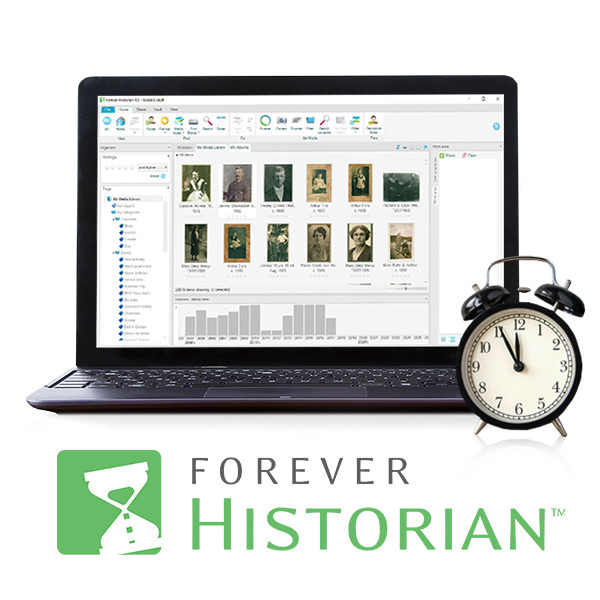
Creative Memories Memory Manager stores your photos in its own proprietary format of folders and numbers photos. This means that you need the Creative Memories Memory Manager software or its successor Forever Historian to view your photos.
How to Move Your Vault to Forever Historian
Simply purchase and install Historian, then click on the Open another vault button on the Home menu at the top of the screen.
Then you can just locate your old vault it will bring in all your images and your existing vault settings – including categories, tags, star ratings, and so on.
It's surprisingly simple!
I contacted you in April with my freak out problem. It has taken me this long to carve out a long chunk of time for me to work on my album that I lost with the crash.
Happily, in 20 minutes it seems that Historian is installed and I have access to my 24k images. The albums I've started are all there. What a relief.
Thank you.
Merry Christmas, Christina
How to Move Your Photos Out Of Memory Manager
If you have decided to move on from Memory Manager (perhaps you have a Mac and can't use Forever software).
You'll just need to export the contents of the vault in Memory Manager into a folder so that you can import them into Photoshop Elements.
Head to the Vault Menu, then click export vault. This is an essential step to be sure you keep all your metadata and story information. (If you keep the photos as they are in Memory Manager you will be able to import them but will lose the tagging and stories you added.)
Be sure to export the vault as the first step.

When you move to PSE Organizer, it will work with your photos where they are stored doesn't move/copy them into a new location. To learn more, I have a class specifically teaching how to organize your photos with Photoshop Elements. Organizing for Absolute Beginners will walk you through collecting all your photos into one home base and getting them organized with the automatic organizing features in Photoshop Elements Organizer saving you hours of tedious tagging.
Are you wondering how to continue without Memory Manager?
Let me know if you have more questions in the comments, I'm keen to help.

PS Pin for later!


I am an Amazon affiliate so may receive a commission if you make a purchase.


Melissa, how do I view the stories from Memory Manager in PSE2020? I’ve exported the vault but the comments aren’t available. Thanks, Robin
Hi! Unfortunately PSE does not put the “story” information in the “notes” information. It is under metadata – user comments, which is hard to find.
Adobe doesn’t display every field in the PSE file info tab (but they’ve had this field mentioned to them so perhaps in the future?), but you should also be view the metadata in Windows also in the Details tab of File Properties on your images.
Hi! Unfortunately PSE does not put the “story” information in the “notes” information. It is under metadata – user comments, which is hard to find.
Adobe doesn’t display every field in the PSE file info tab (but they’ve had this field mentioned to them so perhaps in the future?), but you should also be view the metadata in Windows also in the Details tab of File Properties on your images.
What other Mac programs could one use instead of Adobe PSE? It’s too complicated to learn. Thanks,
What are you wanting to do? If you have an M1 chip you could use the Project Life App for simple pages. You could also try Affinity Photo – but that is more complex.
How do I retrieve pictures from Memory Manager after the laptop crashes? I have the hard drive removed, but every time I try a data transfer, I find numbered folders within the backup folders that contain stock pictures instead of mine. Can I still get my pictures??
Hi Alisha, by default Memory Manager would have stored your vault in your Documents folder, there should be your photos inside. Feel free to email help@digiscraphq.com with a screenshot of what’s happening and I can help you.
I am following up with an email now.
I’m still confused on how to do this. My situation is this…my old laptop computer stopped turning on and I had the hard drive removed so I think I have those files on the hard drive. I also have a load of cds that were made with/from the creative memories software between 2003-2007. I can’t open the cds to get my pictures without the software and I’m not sure where to go from here.
I have a new laptop and NO software. The software cds I think were tossed a few years ago or so. But I have all my kiddos baby pictures on these cds and no where else. I’m sad. Can you please help me? Thanks!
Hi Brianna
You can restore your old photos with Historian https://www.forever.com/ambassador/melissashanhun/historian (use the $20 off coupon you get when you register!) – then you can restore the photos by opening vault from the old computer HDD or restore it from the backup the CDs.
You can email help @ digiscraphq.com if you would like some more help. I have walked several customers through this process and we managed to safely restore all their files 🙂
I hope this helps!
Melissa
If I printed photos directly through Memory Manager, are those photos saved on a cloud somewhere that I can retrieve them? I lost a couple of years worth of photos on our computer and have no way to access them.
Do you still have the Memory Manager vault? Unfortunately the printing back in 2013 and earlier was via Creative Memories and online end of the printing orders is no longer available. But feel free to email help at DigiScrapHQ.com with more details and I’ll see what I can do to help.
I submitted most of my photos to Creative Memories digital system years ago and am supposed to have a access to them. I don’t know how to access them any longer and since lost my hard copies. Help!
Hi Tina! I’d love to help – email help at digi scrap hq.com and I’ll be able to help you get access to your photos.