Digital Scrapbooking HQ

Learn to Scrapbook Using Your Computer

  • Blog
  • Classes
  • Book Melissa
  • About
  • Contact

Can you find a photo of your grandparent’s home in less than 10 seconds? I can!

October 10, 2015 By Melissa Shanhun Leave a Comment

Are you inspired to tell the stories of your family's favourite getaway?

Would you love to share the story behind a local landmark?

Telling stories about your childhood home, your town, and your travels can be complex, if you are dealing with photos from multiple cameras. Time moves on and you can't quite remember where you were when you took that snapshot. Was it Nowra, Wagga Wagga, Airlie Beach, or the Gold Coast?

Having just come back from a trip all over the eastern states of Australia, remembering where my photos were shot can take a bit of deduction. If you have a GPS in your camera or use location services on your phone photos, you are in luck!

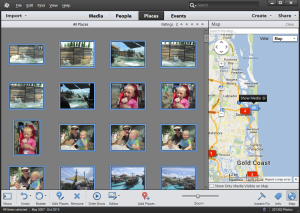
Using Photoshop Elements Organizer you can quickly find where your photos were taken. Organizer can see this information automatically adds them to a map in the Places view in Organizer. Though my camera doesn't have a GPS, the Eye-Fi SD card does.

This feature is perfect for finding photos of say, a favourite family holiday spot throughout the years or locating photos taken at your parent's home.

Don't have a GPS or Camera Phone? Don't Despair!

You can still use Organizer to locate your photos manually. I'd recommend you do this for a family holiday or trip away from home, rather than for every photo, as it could get time consuming.

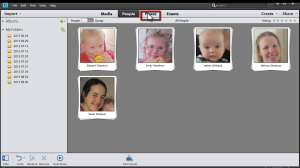
Click on the Places view button.

Places Adobe Photoshop Elements Organizer

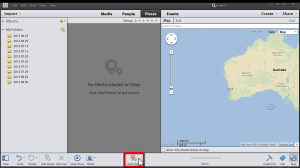
A map will appear, click Add Places.

Add places to Photoshop Elements Organizer

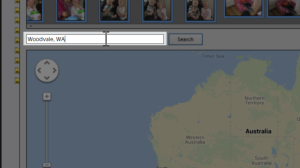
Select the photos which you recognize to have been taken from one place and enter the location in the search box.

Add places Photoshop Elements Organizer

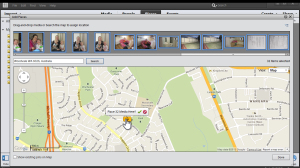
Further specify the location by dragging the Yellow rectangle on the map.

Add places specify on a map Adobe Photoshop Elements Organizer

And click on the Green Tick/Check Mark to confirm.

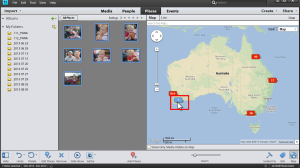
This should create a Red rectangle to indicate you have that number of pictures taken from that location.

In this case, we click on the red rectangle with the number 7...

Add places specify on a map Adobe Photoshop Elements Organizer

and this will show us the 7 photos taken from that Location in the photo bin to the left.

It's pretty awesome!

So having a map feature is pretty cool, but it's more than just a novelty. Here are two ways the Places view in Photoshop Elements can help you can tell your stories:

1. Tell a heritage story with a modern photo

It's not likely that you have photos of your family's homes at your fingertips, but if you've ever travelled for a family reunion, you likely stopped by the home and taken a shot or two.

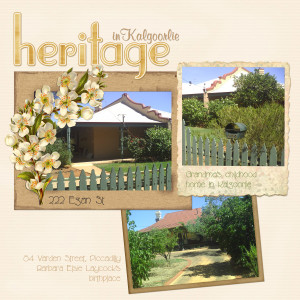
Heritage in Kalgoorlie - Digital Scrapbook Page

In this page, I used two photos take in modern times, to tell a story about my grandmother's home town of Kalgoorlie. It was easy to zoom in on the map in Organizer to see the photos I had of those locations and select a couple to scrap.

2. Scrap a Road Trip, accurately

If you have ever been left wondering where a photo was taken and at which town you visited, you'll love the map view.

We just returned from a holiday and visited many different locations. In a few months from now, the details may be foggy, but I'll easily be able to find all our Sea World photos over the three days we were there. All the photos at ready for me to access in one spot, regardless of where the files are located and which device was used (We had 2 phones, our point and shoot camera and my parents' camera all snapping away happily!)

Looking ahead, as I imagine we will in a few years time, it will be fun to scrap a couple of "then and now" pages showing the children growing up. It will be easy to see all the photos:

  1. Map photos
    Click on places
  2. Zoom in to map location
  3. Click on the red location flag.
  4. Click show media
  5. Scrap your favourite photos!

Having your photos on a map is just one of the many automated features in Photoshop Elements Organizer. You'll learn so much more in Organizing for Absolute Beginners. Inside this class,  you will help make a place for everything and have everything in its place in just five lessons.

I will teach you how you too can have your photos at your fingertips and put your software to work for you.

We’ll cover:

  • Automating the import process - so you don’t have to remember what you’ve imported and what you haven’t
  • Managing multiple devices - so you can always find the photos you need
  • Creating a hands-free backup system that won’t cost the earth - so your memories are safe
  • Advanced searching techniques so you can find the photos you need in a snap - forget hunting for the perfect shot
  • How to maintain your system in just a few minutes at a time - so things keep running like clockwork
Organizing for Absolute Beginners

Check it out now

If you could wave a magic wand over your photos, how would your photos be organized?

Melissa1
See my favourite things in the Digi Scrap HQ Store at Amazon.

I am an Amazon affiliate so may receive a commission if you make a purchase.

Filed Under: Photoshop Elements Organizer Tagged With: geo-tagging, Organizer, Photoshop Elements, Photoshop Elements Organizer, Photoshop Elements tutorials, Tutorial

About Melissa Shanhun

Melissa Shanhun is a Aussie mum of four and avid digital scrapbooker. She loves to show others how fun and easy it can be to record your precious memories with tech tools like Photoshop Elements.
Leave a Reply Cancel reply

Your email address will not be published. Required fields are marked *

G’day! I’m Melissa


G’day, I’m Melissa, Aussie mum and digital scrapbook educator. I'm here to help you pair your photos with memories (and fun supplies!) and create your own photo books.
Click Here to Get Started

Search

Youtube

Join us on Facebook

On the Site

ABCs of PSE Adobe Photoshop Adobe Photoshop Elements affiliate Ali Edwards Becky Higgins Christmas Christmas Album Christmas layout ideas Christmas scrapbook Crafts December Daily December Daily Inspiration December Down Under Digital Scrapbook digital scrapbooking digital scrapbook pages Forever giveaway Holiday Faves interview keyboard shortcuts Lain Ehmann Nettio Designs photobook photobooks photo books photo editing Photoshop Photoshop Elements Photoshop Elements Organizer Podcast project life Project Life app PSE13 PSE2021 Scrapbook Scrapbooking Shutterfly templates tools Tutorial tutorials Week in the Life Workshop

Copyright © 2026 Melissa Shanhun 2011-2023

I wish to acknowledge the traditional custodians of the land I live and work on, the Whadjuk (Perth region) people. I acknowledge and respect the continuing Noongar culture and the contribution they make to the life of this city and this region.

Privacy policy

As an Amazon Associate I may earn from qualifying purchases.

We use cookies on our website to give you the most relevant experience by remembering your preferences and repeat visits. By clicking “Accept”, you consent to the use of ALL the cookies.
Do not sell my personal information.
Cookie SettingsAccept
Manage consent

Privacy Overview

This website uses cookies to improve your experience while you navigate through the website. Out of these, the cookies that are categorized as necessary are stored on your browser as they are essential for the working of basic functionalities of the website. We also use third-party cookies that help us analyze and understand how you use this website. These cookies will be stored in your browser only with your consent. You also have the option to opt-out of these cookies. But opting out of some of these cookies may affect your browsing experience.
Necessary
Always Enabled
Necessary cookies are absolutely essential for the website to function properly. These cookies ensure basic functionalities and security features of the website, anonymously.
CookieDurationDescription
cookielawinfo-checkbox-analytics11 monthsThis cookie is set by GDPR Cookie Consent plugin. The cookie is used to store the user consent for the cookies in the category "Analytics".
cookielawinfo-checkbox-functional11 monthsThe cookie is set by GDPR cookie consent to record the user consent for the cookies in the category "Functional".
cookielawinfo-checkbox-necessary11 monthsThis cookie is set by GDPR Cookie Consent plugin. The cookies is used to store the user consent for the cookies in the category "Necessary".
cookielawinfo-checkbox-others11 monthsThis cookie is set by GDPR Cookie Consent plugin. The cookie is used to store the user consent for the cookies in the category "Other.
cookielawinfo-checkbox-performance11 monthsThis cookie is set by GDPR Cookie Consent plugin. The cookie is used to store the user consent for the cookies in the category "Performance".
viewed_cookie_policy11 monthsThe cookie is set by the GDPR Cookie Consent plugin and is used to store whether or not user has consented to the use of cookies. It does not store any personal data.
Functional
Functional cookies help to perform certain functionalities like sharing the content of the website on social media platforms, collect feedbacks, and other third-party features.
Performance
Performance cookies are used to understand and analyze the key performance indexes of the website which helps in delivering a better user experience for the visitors.
Analytics
Analytical cookies are used to understand how visitors interact with the website. These cookies help provide information on metrics the number of visitors, bounce rate, traffic source, etc.
Advertisement
Advertisement cookies are used to provide visitors with relevant ads and marketing campaigns. These cookies track visitors across websites and collect information to provide customized ads.
Others
Other uncategorized cookies are those that are being analyzed and have not been classified into a category as yet.
SAVE & ACCEPT