So Photoshop Elements 13 has been released and you may be wondering if you should upgrade. Sometimes, it's not the new features in a program that clinch the deal.
In this version of Photoshop Elements, the team at Adobe have outdone themselves fixing lots of niggly issues that were previously in the programs. I truly appreciate the team's effort - more than 90 bugs have been squashed and improvements in the program are too numerous to count.
Here's the highlights!
1. Scrapbooking Presets for All!
Now it's easier than ever to start a scrapbook page from scratch.
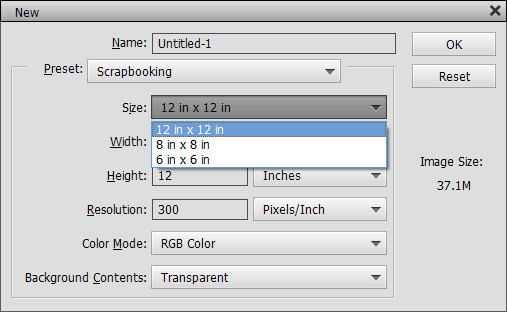
In the past only the North American editions of Photoshop Elements have the scrapbooking size presets. You'll never again have to type in the 12 in x 12 in 300 dpi dimensions you need to start a digital scrapbook page from scratch
To use scrapbooking presets:
- Click File - New - Blank File
- Select the size page you want to create from the Size dropdown.
- Click Ok. Easy as pie.
2. Consistent Dragging
This bug fix is the main reason I'd recommend scrappers upgrade from PSE12 to PSE13.
Well, almost.
Each version of Photoshop Elements handles file dragging and dropping slightly differently depending on where you drag things from.
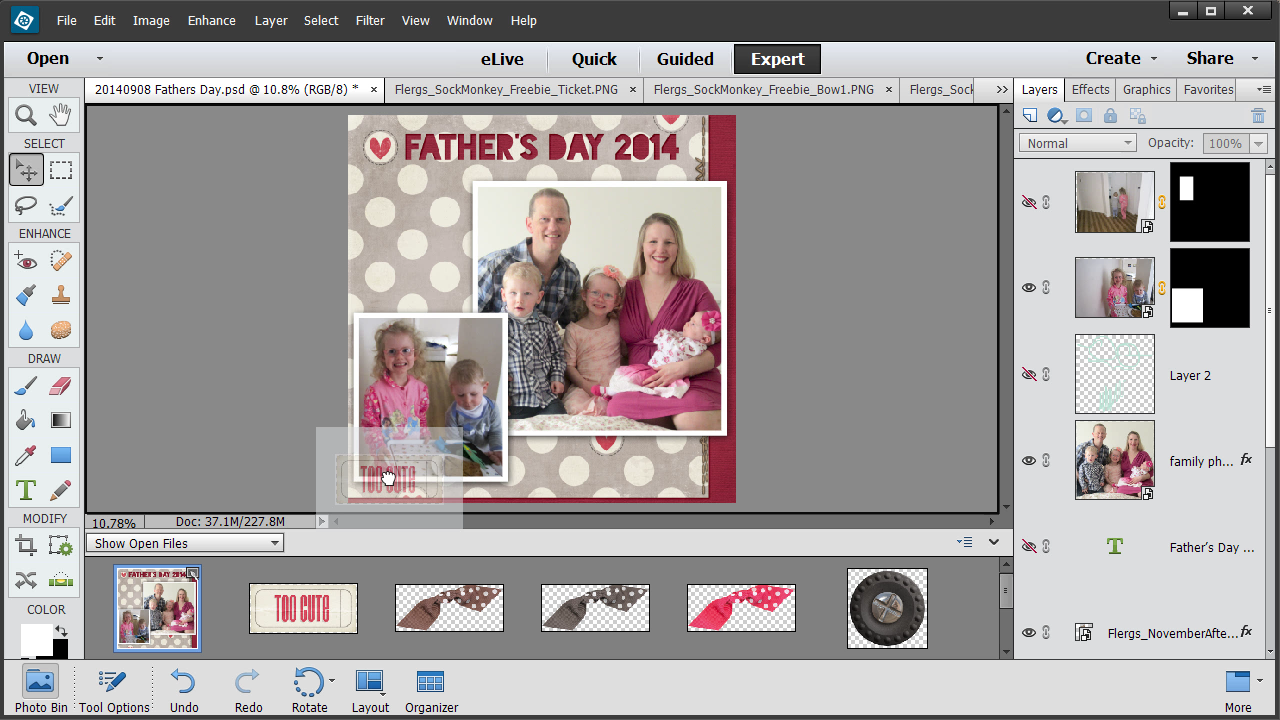
In Photoshop Elements 13, Adobe fixed the bug that led to images that were dragged from the photo bin being resized up to fill the whole canvas.
Now, if you do that, your image remains the same size. Unless it's bigger than the canvas, in which case it's sized down. BUT the good news is, it's now a smart object so you can resize it back up to full size without losing pixels. In effect, it brings back the ability to drag in embellishments onto your layouts.
Here's how it works:
- Open your files as normal
- Click on the photo bin icon

- Click on the embellishment you want to add to your page
- Drag it up onto the layout
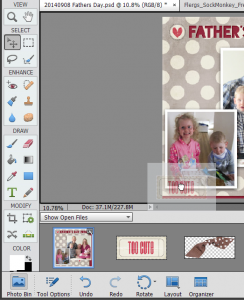
- Do a little happy dance and thank Adobe for fixing this bug!
I've explained the nitty gritty details of which version does what when here: Drag, Drop and Float: How to keep layers at their best in Photoshop Elements.
3. Scrubby slider for font size
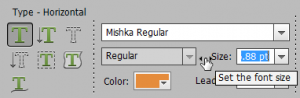
Scrubby font sizes return!
If you've ever struggled to make your text just the perfect size for that spot in your layout, struggle no more!
In Photoshop Elements 13, you can easily make fine adjustments to your text size with the newly restored scrubby slider (missing since PSE11).
How to use the scrubby slider for font size:
- Just mouse over the Size label in the Tool Options panel and your cursor will change to look like this

- Click and drag to the left or right to decrease or increase the font size.
BONUS TIP: This works for Leading and layer Opacity too!
4. Recent File List
In previous versions of Photoshop Elements, the recent file menu on the Open button was almost unusable as it (inconsistently) included the full path of the file. So you couldn't see the file name
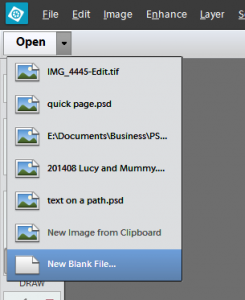
I have no idea what file E:\Documents\Business\PS... refers to
But now, the Open recent files menu just lists the file name. Much more helpful thanks Adobe!
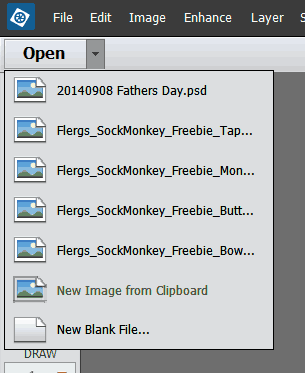
Aah, much better in PSE13!
5. Keywords Stay Open

All fixed in PSE13
Have you ever been working in Organizer and found that the Tags/Info panel keeps vanishing?
In Photoshop Elements 13, you never need to worry. The tags panel will say open now!
Another niggly bug squashed!
BONUS: 64 bit for Windows
Not really a bug fix, but finally the Photoshop Elements Organizer is in full 64bit! This enables Photoshop Elements to access more RAM so that the program doesn't have to use the swap file on your hard drive.
So how does that help?
Basically the software is more efficient will run faster on systems with a lot of RAM. Moving to 64 bit will allow you to access files larger than 2 GB in the Editor (hmmm, my biggest scrapbook pages are less than 200Mb though!)
In the Organizer the upgrade is much more apparent. For people like me with a catalog of over 200 000 digital supplies, I really helps it load thumbnails and search much more quickly.
If you have the Mac version it's been 64 bit for a while, but this is new to Windows.
What about the new features?
I've talked about my top 5 new features for scrapbookers here.
But, there's so much more to the new edition! There are many new features I've not included here, such as a lot of new photo editing features and Instagram-style filters in guided and quick edit modes of Photoshop Elements. The built-in photo restoration tools will make your vintage photos shine! Take a peek at the video below for a taste.
So, let me know, in the comments below, what bugs you about Photoshop Elements? Maybe it's be fixed!

I am an Amazon affiliate so may receive a commission if you make a purchase.


Melissa, wonderful detailed description of the new software. Other reviews I have read did not tempt me into further exploration of Elements 13. Your connections to exactly how the software might benefit me as a scrapbookers have intrigued me. Heading to Adobe site for more. Thanks as usual for a great job!
Thanks! I’m glad you found it helpful.
Melissa, I just checked the upgrade price – $99.00 – with no coupons to be found anywhere. I think I will postpone purchase till I find a better upgrade price. Quite high if Adobe is releasing each year, in my opinion. But thanks again for all the info!
I think there’s usually a good deal to be had around Black Friday – keep an eye out!
I had not thought of that, thank you for reminder. I would be interested in using the new features you explained, but will wait for a bit lower price. Thanks again.
Hmm, it should show up to be $79 – well it does for me.
This am it was $99, checked a few times, but now it is $79. Thanks for that!
Amazon has it for $79, and usually adobe will drop theirs to match.
costco 79.99
Not sure if it still available but Amazon had this software for $49.99 if you are a Prime member. I purchased two days ago.
Hi Melissa! Have you encountered or heard about any issues with opening files in PSE13 with the new OS Yosemite, specifically with their new photo program that replaced iPhoto? For example, in the past you could drag a photo from iPhoto directly into PSE or you could Click–>Open from PSE and see your iPhoto library but now it appears all that functionality has gone away. The only workaround I could find was to export the photo from iPhoto into a folder and then open it in PSE. Once you finish editing you then have to import the photo back into iPhoto. Seems crazy. I’m wondering if PSE12 has the same issue, if not I may need to downgrade although that seems crazy too.
Sorry! It’s an issue with the Photos app so downgrading won’t help. There is no setting to add an external editor. So there isn’t much you can do. Perhaps this will help http://www.imore.com/how-use-external-editor-photos-os-x
Otherwise you can import your old iPhoto catalog into PSE Organizer and use that instead of Photos.