Are you part of the 30% of digital scrapbookers who already own a time-saving tool they have never used?
Did you know that all your photos, supplies and even videos could be organized without spending another cent?
If you wish there was a way to organize without converting files, worrying about metadata (unless you want to) and confusing importing systems, breathe easy, I'm here to show you it is possible to have a workable system that doesn't eat up all your scrapping time.
So what is this mysterious organizing system, of which you speak?
Photoshop Elements Organizer.
You know that thing that is the 'other' option when you load up Photoshop Elements?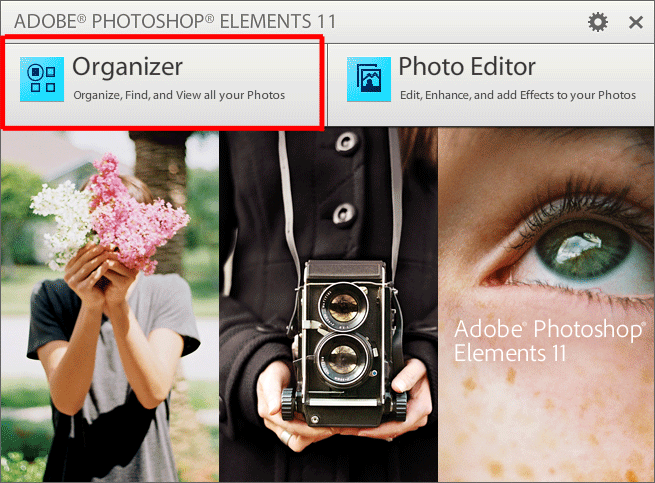
You may have tried it back in the day and found it to be too slow or cumbersome, or you may use it to import your camera photos and never bother to actually open the program.
But in Photoshop Elements 11, the Organizer has really come into its own, with advanced features that automate a lot of the manual data entry that was previously required to maintain an organisation system.
How Organizer works
The Photoshop Elements Organizer links to your original files on your hard disk wherever that may be, whether that is on your internal hard disk, on an external hard drive, or elsewhere on a networked drive.
Organizer is simply a database that links back to your digital scrapbooking supplies or photos, wherever they’re stored on your hard drive.
Photoshop Elements Organizer is a catalog system, which means that it keeps it's own database of information about the photos or supplies you have imported into the catalog. Lightroom and ACDSee are also catalog systems.
Picasa and Windows Live Photo Gallery on the other hand, are browser based systems, that don't keep a large amount of information in catalogs. (For the technical people among us, yes they do have databases, but they are generally used for speed browsing rather than actually manage the files)
Organizer saves the metadata (star ratings, tags or captions) to its own database but you can also write that to the files that support it.
Automation: The Secret to Happy Scrapbooking
Who here prefers to take the shortcuts when organising so you can spend more time scrapping?
In upcoming posts, I'll share more about how to use the automated organising features in Organizer, but here's a little taste of what Organizer can automate.
Automated importing: Organizer can monitor new files that you’ve just unzipped, or imported into the Organizer ready for you to tag. You can either import your photos with Adobe's Photodownloader directly or have it watch your folders for new photos.
If you go digi shopping regularly or you’re a member of the Digi Game, you can have your new supplies come into Organizer automatically.
A great feature of Organizer for Windows is that you can have your photo folders or supply folders constantly monitored and imported. I know that Adobe is working on including it in future versions.
Who: Face recognition that allows you to easily tag people, and even connect with Facebook to make tagging friends and family a breeze.
What: Photos are automatically collected into events based on bursts of photography. Spend an afternoon at the zoo? All you need to do is label the event once and all your zoo photos are set up.
Where: If you have a GPS-enabled camera or take photos on your smart phone, you'll find all your photos are automatically added to the map.
When: Assuming your camera and/or phone have correct dates, your photos can be imported by Organizer and filed in your choice of folder formats.
Previews and Designers: For any supplies with standard names and file sizes or pixel widths, you can set up saved searches (or smart albums) to make always up-to-date collections of goodies from your favourite designers or collect all your kit previews at the touch of a button.
Colours and shapes: Using visual similarity searches you can find all the yellow in your stash without any tagging, or use it to speed tagging and combine it with advanced searching to cut organising.
What's the prenup?
If you are a listener of the Digi Show or a fan of Kayla Lamoreaux, you'll remember that the whenever you start organising with a software program you will need to consider your exit plan.
I've been using Photoshop Elements Organizer since version 6 (for 8 years now!) and have used Organizer with 3 computers and 6 versions of PSE, without a hitch. I know that a lot of Daily Digi readers will be interested in this aspect, but it we will be getting a little bit technical. So feel free to skip ahead, if you want to know more about to protecting your catalog, read on.
As an archivist, I spent much of my time at university learning about metadata formats and writing migration plans to help organisations deal with constant software upgrades and file formats. There are many reasons you may want to think about migrating from your current system, from hardware failure, operating system upgrades and more.
What can you do if you want to change systems, if the catalog (database) is corrupted or some other disaster befalls your system?
With Photoshop Elements Organizer there are several ways to protect yourself:
Save Metadata to Files
When you star rate, tag or caption your photos or supplies, you are creating metadata about your photos.
Metadata simply means data about data. This 'data about data' is stored, by default in the Organizer database, which is called the catalog. If you don't have access to the catalog, you may not have access to your metadata. (I say may not, because any time you open the image in PSE it will write your metadata to the file by default.)
If you want to transfer (write) this information to your images, you'll need to write the metadata.
This is a simple matter of a menu command File - Save Metadata to Files in the current version of Organizer.
This will allow other programs to see the tags you've applied to JPEG, PSD and TIFF images.
Though PNG files are generally said not to support metadata, there are technically metadata fields in PNG files, and Organizer can write metadata to PNG files in the Adobe XMP format. However, it is almost impossible to re-import that back into the Organizer at this stage.
Much like Lightroom 5, Organizer manages PNG tags within its own database.
Saving metadata to files means that Picasa, Windows Live Gallery and Lightroom can see this metadata.
Backup your Catalog
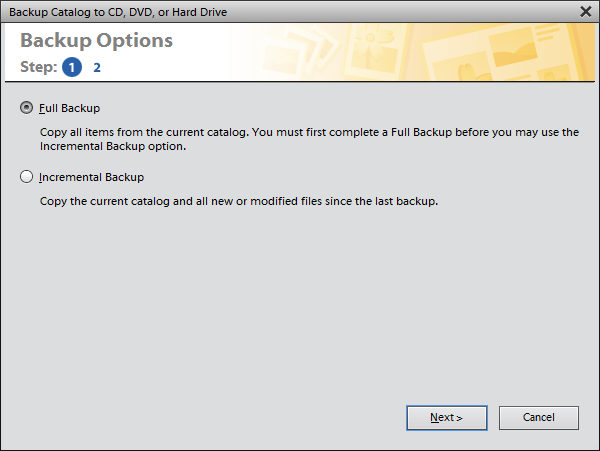
You can use Organizer's built in backup system to backup your catalog and images to an external hard drive or DVD.
A word for the Folder Happy: The downside of this system is that the backup system has some difficulties with very long (over 250 character) file paths. So if you have folders within folders, within folders, within folders, it may not restore correctly named folders. For example, if you store your supplies in C:/Windows/Profiles/Melissa/Documents/Scrapbooking/Supplies/ScrapbookGraphics/Flergs/Flergs_ABoysLife/Alpha/ you may have issues restoring them. Not that I know anyone who would do that 😉
This will allow you to restore your catalog in the event of a system failure, or to move it to a new computer.
Backup your Computer
This is my preferred option - if you use Crashplan, or a similar online system, be sure to backup head to the Help menu, then System menu. The location of the catalog file currently open on your computer is listed under Current Catalog > Catalog Location).
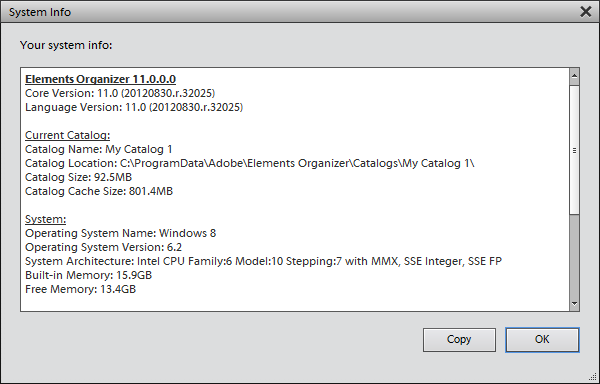
If you backup this directory, and your photo library, you can always restore from your backups, without having to remember to use the Organizer backups.
Crossgrades
So what if you decide to move away from Photoshop Elements Organizer?
You aren't locked in.
Lightroom will import the Organizer catalog with a little fuss and preserve your tag structure, albums and more.
For photos and supplies, any software system that reads metadata from the files (such as ACDSee, Picasa, Windows Photo Gallery etc) will support the organising you've done.
Ready to try Organizer?
Now I've put your mind at ease, we can get organised!
I have many articles that share simple strategies you can use to get your supplies under control, whether you area a kit scrapper or love putting an eclectic mix of supplies on your pages. You don't even have to be a compulsive tagger to benefit.
Happy Organizing!

I am an Amazon affiliate so may receive a commission if you make a purchase.


Leave a Reply