Digital Scrapbooking HQ

Learn to Scrapbook Using Your Computer

  • Blog
  • Classes
  • Book Melissa
  • About
  • Contact

Create a Dotted Border in Photoshop Elements

February 9, 2012 By Melissa Shanhun 10 Comments

A question from Tania:

 I have been driving myself nuts trying to figure out if it’s possible to do dot borders in Photoshop Elements. They don’t have to be this shape specifically but any of the tutorials I have been able to find online don’t seem to work out as they should. Is it possible to even do this in Elements or do you need the CS version to be able to follow a path?

Dotted border on heart

To achieve this look we need to use the brush tool - this method works in Photoshop Elements and Photoshop CS.

Rectangular Dotted Border

Use guides to help you line up your dots!

Remember to create a new layer for each side so you can change or move your border later.

Custom Dotted Border

In this example I draw the dotted line freehand to fit around a heart.

Draw a Dotted Border

To draw a dotted line:

  1. Create a new Layer (Ctrl+Shift+N or Cmd+Shift+N on a Mac)
  2. Select the Brush tool.
  3. Select a small hard round brush.
  4. On the options bar, change the size of the brush.
  5. On the options bar, click the paintbrush icon at the far right to open the Additional Brush Options dialogue box.
  6. In the Additional Brush Options dialogue box, select the following options:
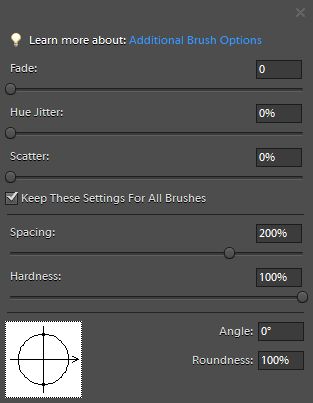
    Additional brush options in Photoshop Elements
  7. Set Fade, Hue Jitter, and Scatter to 0.
  8. Set Spacing to 200% (or play around to find your preferred setting). Spacing is a percentage of the brush diameter and determines the distance between brush marks. Increase this setting to increase the distance between dots.

To Draw a Straight Line

  1. Click where you want the dotted line to begin
  2. Hold down the Shift key
  3. Click where you want to line to end
  4. Release the Shift key

For more information about brushes, check out Digital Scrapbooking Secrets: Misting, stamping, inking and more messy fun!

In this workshop I use brushes for painting in Photoshop Elements, stamping and other techniques.
Melissa1

See my favourite things in the Digi Scrap HQ Store at Amazon.

I am an Amazon affiliate so may receive a commission if you make a purchase.

Filed Under: Digital Scrapbooking Primer, Tutorials Tagged With: Adobe Photoshop Elements, brush, brushes, dotted border, dotted line, Photoshop Elements

About Melissa Shanhun

Melissa Shanhun is a Aussie mum of four and avid digital scrapbooker. She loves to show others how fun and easy it can be to record your precious memories with tech tools like Photoshop Elements.

Comments

  1. Connie Hanks says

    November 18, 2013 at 12:13 am

    Thanks so much for the tips, Melissa!

    Reply
    • Melissa Shanhun says

      November 19, 2013 at 9:16 pm

      🙂 Happy to help Connie! 🙂

      Reply
  2. hannahk says

    November 28, 2013 at 8:24 pm

    yay finally got around to trying this, and got it after a few attempts (I failed to read the whole post and so got stuck on how to make the dot instead of a solid line). easy peasy when you know how 🙂

    Reply
    • Melissa Shanhun says

      November 28, 2013 at 8:57 pm

      YAY! Happy you worked it out!

      Reply
  3. marke says

    January 20, 2014 at 2:22 am

    Hello Melissa, how would you create a *dashed* border so the rectangle looks like a coupon? thanks!

    Reply
    • Melissa Shanhun says

      January 21, 2014 at 3:29 pm

      Hi Marke

      For that you’d change the shape of your brush to a rectangle (eg something like one of these stitch brushes http://www.digitalscrapbookinghq.com/add-stitching-to-a-digital-scrapbook-layout/)

      Spread out the spacing and it should work 🙂

      Let me know how it goes!

      Reply
  4. Natalie (QSOgirl) says

    December 16, 2015 at 12:02 pm

    Ah! Thank you!! This helped me to draw a plain straight line rectangle in PSE7. Exactly what I was hoping to do for my Christmas card design 🙂 Thank you so much!!

    Reply
    • Melissa Shanhun says

      December 18, 2015 at 4:41 pm

      YAY! Happy to help! 😀

      Reply
  5. Sarah says

    August 8, 2023 at 7:45 pm

    Thank you! That saved me so much brain-ache…

    Reply
    • Melissa Shanhun says

      August 9, 2023 at 6:17 am

      I’m so glad! Thanks for the comment Sarah

      Reply

Leave a Reply Cancel reply

Your email address will not be published. Required fields are marked *

G’day! I’m Melissa


G’day, I’m Melissa, Aussie mum and digital scrapbook educator. I'm here to help you pair your photos with memories (and fun supplies!) and create your own photo books.
Click Here to Get Started

Search

Youtube

Join us on Facebook

On the Site

ABCs of PSE Adobe Photoshop Adobe Photoshop Elements affiliate Ali Edwards Becky Higgins Christmas Christmas Album Christmas layout ideas Christmas scrapbook Crafts December Daily December Daily Inspiration December Down Under Digital Scrapbook digital scrapbooking digital scrapbook pages Forever giveaway Holiday Faves interview keyboard shortcuts Lain Ehmann Nettio Designs photobook photobooks photo books photo editing Photoshop Photoshop Elements Photoshop Elements Organizer Podcast project life Project Life app PSE13 PSE2021 Scrapbook Scrapbooking Shutterfly templates tools Tutorial tutorials Week in the Life Workshop

Copyright © 2026 Melissa Shanhun 2011-2023

I wish to acknowledge the traditional custodians of the land I live and work on, the Whadjuk (Perth region) people. I acknowledge and respect the continuing Noongar culture and the contribution they make to the life of this city and this region.

Privacy policy

As an Amazon Associate I may earn from qualifying purchases.

We use cookies on our website to give you the most relevant experience by remembering your preferences and repeat visits. By clicking “Accept”, you consent to the use of ALL the cookies.
Do not sell my personal information.
Cookie SettingsAccept
Manage consent

Privacy Overview

This website uses cookies to improve your experience while you navigate through the website. Out of these, the cookies that are categorized as necessary are stored on your browser as they are essential for the working of basic functionalities of the website. We also use third-party cookies that help us analyze and understand how you use this website. These cookies will be stored in your browser only with your consent. You also have the option to opt-out of these cookies. But opting out of some of these cookies may affect your browsing experience.
Necessary
Always Enabled
Necessary cookies are absolutely essential for the website to function properly. These cookies ensure basic functionalities and security features of the website, anonymously.
CookieDurationDescription
cookielawinfo-checkbox-analytics11 monthsThis cookie is set by GDPR Cookie Consent plugin. The cookie is used to store the user consent for the cookies in the category "Analytics".
cookielawinfo-checkbox-functional11 monthsThe cookie is set by GDPR cookie consent to record the user consent for the cookies in the category "Functional".
cookielawinfo-checkbox-necessary11 monthsThis cookie is set by GDPR Cookie Consent plugin. The cookies is used to store the user consent for the cookies in the category "Necessary".
cookielawinfo-checkbox-others11 monthsThis cookie is set by GDPR Cookie Consent plugin. The cookie is used to store the user consent for the cookies in the category "Other.
cookielawinfo-checkbox-performance11 monthsThis cookie is set by GDPR Cookie Consent plugin. The cookie is used to store the user consent for the cookies in the category "Performance".
viewed_cookie_policy11 monthsThe cookie is set by the GDPR Cookie Consent plugin and is used to store whether or not user has consented to the use of cookies. It does not store any personal data.
Functional
Functional cookies help to perform certain functionalities like sharing the content of the website on social media platforms, collect feedbacks, and other third-party features.
Performance
Performance cookies are used to understand and analyze the key performance indexes of the website which helps in delivering a better user experience for the visitors.
Analytics
Analytical cookies are used to understand how visitors interact with the website. These cookies help provide information on metrics the number of visitors, bounce rate, traffic source, etc.
Advertisement
Advertisement cookies are used to provide visitors with relevant ads and marketing campaigns. These cookies track visitors across websites and collect information to provide customized ads.
Others
Other uncategorized cookies are those that are being analyzed and have not been classified into a category as yet.
SAVE & ACCEPT