Digital Scrapbooking HQ

Learn to Scrapbook Using Your Computer

  • Blog
  • Classes
  • Book Melissa
  • About
  • Contact

Photoshop Elements Organizer Workflow

January 25, 2017 By Melissa Shanhun 4 Comments

Are you upgrading to the new edition of Photoshop Elements? Sonja has some questions about the Organizer workflow and I thought I'd answer them today.

Hi Melissa, I need your help or at least some advice.

I did your Get Organized course for my digi supplies and loved it! Now I have a chance to start fresh...I just got a new laptop and installed a new version of PSE on it. Very excited about this of course (I was on version 6...) but before I start moving all my digi files and photos I was wondering if you have some tips or links to tips on how to start right from scratch.

For example: Is it really worth having PSE import all my pictures? I always move them to my external hard drive after about half a year and then I lose all the links anyway.

And with my digi files it seems that although they are 'in' PSE Organizer I still need to open them from their file folders. Or am I doing something wrong?

Sonja, Netherlands

Wahoo! A new version of Photoshop Elements is always fun. I have explained my scrapbooking workflow here, and I'm happy to answer more of your questions today.

Keeping your Photos Connected on an External Hard Drive

If you still want to scrap from those older photos, you can actually move them to an external hard drive (EHD) from within PSE Organizer and you won't reconnect the file. Even if you do disconnect them, you just need to link up the first file in each folder and they'll all reconnect. If you ever have the EHD unplugged, the photos will have a little icon in the top left to say they are disconnected, but you can still tag them etc. Then when you plug in the EHD again all will be just fine.

Just go to folder view, and drag the folders over just like you would in Windows Explorer/Finder to move them to your external hard drive.

Using Organized Supplies in Photoshop Elements Editor

If you want to use the digi files from within Organizer, just select the files you want to use, right click on them, then Edit and Adobe Photoshop Elements Editor will open them all in PSE for you.

I personally use the place command quite a bit (is that what you are using?), so I often am browsing to the folder so I'm guaranteed to end up with a smart object. PSE has a drag and drop inconsistencies, but in Photoshop Elements 15 you can actual select if you want to use smart objects. If you want to just drag and drop your elements/papers in, you can do it straight from the photo bin.

Another way to use the Organizer is to create an album of your supplies for one layout. Then you switch back to the Editor and add them to your layout by selecting the Photo Bin menu and then Show Files selected in Organizer.
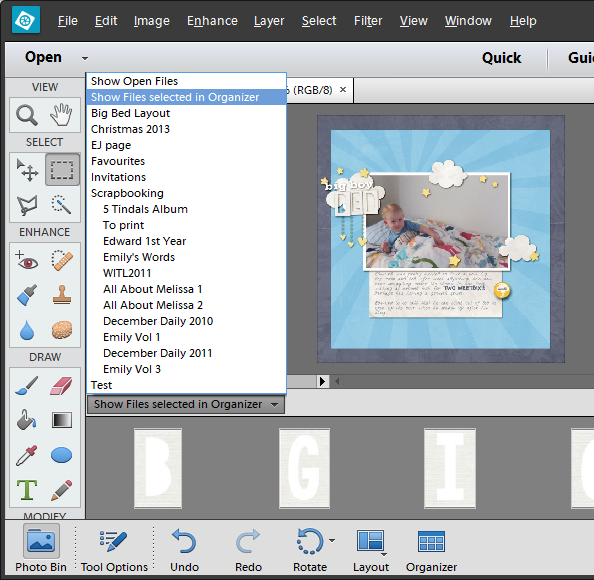
Show Files Selected in the Organizer - Adobe Photoshop Elements

Hopefully this helps... if you have more questions about the Organizer, leave me a comment below.

Melissa

See my favourite things in the Digi Scrap HQ Store at Amazon.

I am an Amazon affiliate so may receive a commission if you make a purchase.

Filed Under: Photoshop Elements Organizer Tagged With: organizer workflow, PSE 15

About Melissa Shanhun

Melissa Shanhun is a Aussie mum of four and avid digital scrapbooker. She loves to show others how fun and easy it can be to record your precious memories with tech tools like Photoshop Elements.

Comments

  1. barbara says

    January 31, 2017 at 1:14 am

    I’m new to Photoshop Elements (just got 15) and am trying to get my files organized by month and year. Wondering it there’s any way to move a selected group of files to a new folder?

    Reply
    • Melissa Shanhun says

      January 31, 2017 at 9:42 am

      Yes! Just select the images and drag them over to the folder you want to move them to. You can even create a new folder in PSE Organizer if you use the tree view in the folders panel.

      Reply
  2. Mosbaskets says

    May 9, 2017 at 1:05 am

    I am very new to PSE. I have 14. i have successfully created several layouts and am feeling more and more comfortable with it. Now I am looking at using the organizer. I currently use Aperture for photos (going back to 2003) and iPhoto for dig supplies. This allows me to have both open at once. I am starting to have concerns with Aperture and decided I need to see out other ways of storing and organizing my photos. Right now, everything is imported into Aperture so I don’t have any folder structures at all. Before I begin I want to plan for long term. I do not tag my photos because I import them into events that are labeled with keywords. I would love any advice on how to get started so that I am not reinventing the wheel or trying to redo everything down the road. Thank you so much.

    Reply
    • Melissa Shanhun says

      May 9, 2017 at 11:03 am

      Hi! You can export from Aperture, but I’m not totally sure who to export events as folders. This article may help. http://www.macworld.com/article/2452232/life-after-aperture-and-iphoto-what-to-do-with-your-image-library.html

      Reply

Leave a Reply Cancel reply

Your email address will not be published. Required fields are marked *

G’day! I’m Melissa


G’day, I’m Melissa, Aussie mum and digital scrapbook educator. I'm here to help you pair your photos with memories (and fun supplies!) and create your own photo books.
Click Here to Get Started

Search

Youtube

Join us on Facebook

On the Site

ABCs of PSE Adobe Photoshop Adobe Photoshop Elements affiliate Ali Edwards Becky Higgins Christmas Christmas Album Christmas layout ideas Christmas scrapbook Crafts December Daily December Daily Inspiration December Down Under Digital Scrapbook digital scrapbooking digital scrapbook pages Forever giveaway Holiday Faves interview keyboard shortcuts Lain Ehmann Nettio Designs photobook photobooks photo books photo editing Photoshop Photoshop Elements Photoshop Elements Organizer Podcast project life Project Life app PSE13 PSE2021 Scrapbook Scrapbooking Shutterfly templates tools Tutorial tutorials Week in the Life Workshop

Copyright © 2026 Melissa Shanhun 2011-2023

I wish to acknowledge the traditional custodians of the land I live and work on, the Whadjuk (Perth region) people. I acknowledge and respect the continuing Noongar culture and the contribution they make to the life of this city and this region.

Privacy policy

As an Amazon Associate I may earn from qualifying purchases.

We use cookies on our website to give you the most relevant experience by remembering your preferences and repeat visits. By clicking “Accept”, you consent to the use of ALL the cookies.
Do not sell my personal information.
Cookie SettingsAccept
Manage consent

Privacy Overview

This website uses cookies to improve your experience while you navigate through the website. Out of these, the cookies that are categorized as necessary are stored on your browser as they are essential for the working of basic functionalities of the website. We also use third-party cookies that help us analyze and understand how you use this website. These cookies will be stored in your browser only with your consent. You also have the option to opt-out of these cookies. But opting out of some of these cookies may affect your browsing experience.
Necessary
Always Enabled
Necessary cookies are absolutely essential for the website to function properly. These cookies ensure basic functionalities and security features of the website, anonymously.
CookieDurationDescription
cookielawinfo-checkbox-analytics11 monthsThis cookie is set by GDPR Cookie Consent plugin. The cookie is used to store the user consent for the cookies in the category "Analytics".
cookielawinfo-checkbox-functional11 monthsThe cookie is set by GDPR cookie consent to record the user consent for the cookies in the category "Functional".
cookielawinfo-checkbox-necessary11 monthsThis cookie is set by GDPR Cookie Consent plugin. The cookies is used to store the user consent for the cookies in the category "Necessary".
cookielawinfo-checkbox-others11 monthsThis cookie is set by GDPR Cookie Consent plugin. The cookie is used to store the user consent for the cookies in the category "Other.
cookielawinfo-checkbox-performance11 monthsThis cookie is set by GDPR Cookie Consent plugin. The cookie is used to store the user consent for the cookies in the category "Performance".
viewed_cookie_policy11 monthsThe cookie is set by the GDPR Cookie Consent plugin and is used to store whether or not user has consented to the use of cookies. It does not store any personal data.
Functional
Functional cookies help to perform certain functionalities like sharing the content of the website on social media platforms, collect feedbacks, and other third-party features.
Performance
Performance cookies are used to understand and analyze the key performance indexes of the website which helps in delivering a better user experience for the visitors.
Analytics
Analytical cookies are used to understand how visitors interact with the website. These cookies help provide information on metrics the number of visitors, bounce rate, traffic source, etc.
Advertisement
Advertisement cookies are used to provide visitors with relevant ads and marketing campaigns. These cookies track visitors across websites and collect information to provide customized ads.
Others
Other uncategorized cookies are those that are being analyzed and have not been classified into a category as yet.
SAVE & ACCEPT